Google opened Tasks in Gemini to free personal accounts across six countries in November 2026, moving its agentic workflow runner out from behind paid subscriptions and onto Gemini 4 Hydrogen. Flipping the home-screen toggle from Chat to Task lets Gemini work across Gmail, Calendar, Drive, Keep, Google Tasks, Search services, and a cloud browser even after you close the app.
The catch sits in the official Help Center fine print. Free accounts get real background automation, but they also hit hard boundaries: up to 10 active schedules, capped at once per day inside a broad overnight, daytime, or evening window. After reviewing Google’s thirteen official Task documentation pages and evaluating 13 commonly suggested automations against those free-tier rules, six recurring jobs hold up reliably without requiring a Google AI Pro or Ultra plan.
| Recurring Job | Free Schedule Window | Connected Services | Confirmation Gate | Deliverable |
|---|---|---|---|---|
| Overnight Newsletter and Inbox Declutter | Daily (overnight) |
Gmail, reusable Skill | No auto-send or delete | Labeled inbox + morning digest thread |
| Morning Priority Briefing Across Gmail, Calendar, and Drive | Daily (overnight or daytime) |
Gmail, Calendar, Drive, Google Tasks | Read-only synthesis | Ranked daily priority list + conflict flags |
| Daily Flight, Hotel, and Shopping Price Watch | Daily (daytime or evening) |
Flights, Hotels, Search, remote browser | Manual Pay with G Pay approval |
Price-delta log + threshold alert |
| Weekly Research Packets and Downloadable Reports | Weekly (overnight or daytime) |
Web Search, remote computer, Drive, SKILL.md |
None for public research | Canvas Markdown, .pdf, .xlsx, or Google Doc |
| Monthly Utility, Medical, and Subscription Bill Audits | Monthly (daytime) |
Gmail, remote computer, optional browser takeover | Live sign-in takeover for portals | Anomaly table + executed Python snapshot |
| Weekly Family and Project Calendar Conflict Triage | Weekly (evening or daytime) |
Gmail, Google Calendar, US gemini@google.com |
Review before external invites | Extracted event list + overlap alerts |
1.What Free Tasks in Gemini Actually Include and Where They Stop
Tasks in Gemini is the production release of the agentic beta Google tested under the name Spark starting in May 2026. Instead of returning one conversational reply, a task thread tracks a multi-step plan in a dedicated work panel with Completed, Current, and Planned steps, a Files drawer, and attached background schedules.
As of November 2026, Google’s Tasks in Gemini documentation restricts free access to users aged 18 or older with a personal Google Account and Gemini History turned on in Australia, Canada, India, Japan, South Korea, and the United States. Paid Google AI Pro and Ultra plans expand access to other supported countries, while the European Economic Area, Nigeria, Switzerland, and the United Kingdom remain excluded. Work and school Google Workspace accounts are not supported on any tier.
The sharpest practical split is between free schedules and paid monitors, detailed in Google’s schedules documentation. Understanding that boundary before creating tasks prevents silent failures and wasted quota.
| Capability | Free & Google AI Plus | Google AI Pro & Ultra |
|---|---|---|
| Active schedules per account | Up to 10 | Up to 50 |
| Time-based cadence | Up to once daily in a general window (overnight, daytime, evening) |
Once, hourly, daily, weekly, monthly, or yearly at exact times |
| Event-driven Gmail monitors | Not available | Supported via Gmail filter triggers |
| News, finance, and event Topic monitors | Not available | Supported (not suitable for fast-moving drops) |
| Concurrent running tasks | Up to 15 (schedules skip if 15 are active) | Up to 15 (schedules skip if 15 are active) |
| Compute usage limits | Standard free compute allowance | Higher tier-scaled compute allowance |
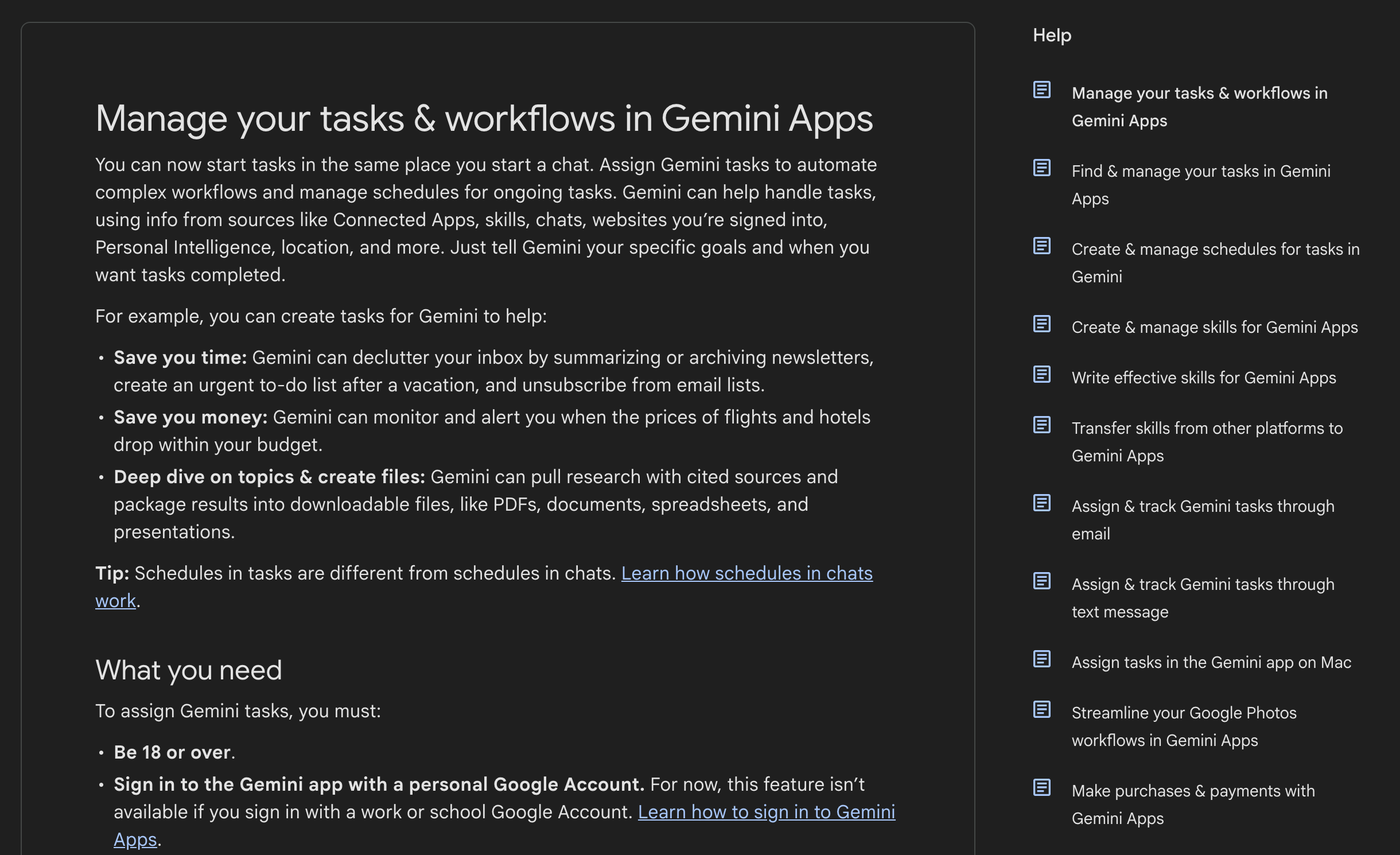
Seven popular automation ideas failed our candidate review against those documented rules and were cut from the list below. Real-time VIP email escalations require Gmail monitors (Pro/Ultra) and still block on mandatory send confirmation. Hourly stock or competitor polling exceeds the once-daily free cadence. Concert ticket snipers fail both tier gating and Google’s explicit warning that monitors are not built for time-critical drops.
Four more pitched workflows break on platform or regional rules. Auto-forwarding rules into gemini@google.com are explicitly unsupported, work Workspace accounts cannot access Task mode at all, automated business calling is limited to the U.S. minus five states (Indiana, Louisiana, Minnesota, Montana, and Nebraska), and grocery checkout via Instacart plus RCS photo-texting remains U.S.-centric with manual checkout handoff. The six jobs below avoid every one of those walls.
2.Overnight Newsletter and Inbox Declutter
An overnight inbox declutter routine uses Gemini’s Gmail connector during the free tier’s overnight window to scan incoming newsletters and promotional mail, extract key takeaways into one morning digest, and apply organizational labels. It keeps low-signal messages out of your primary view without letting an autonomous agent delete records or reply to senders on your behalf.
Newsletter overload is the highest-fit workload for free Tasks in Gemini because it tolerates approximate run times and thrives on once-daily batching. You do not need an exact 6:00 a.m. clock trigger or a paid Gmail monitor when the only goal is waking up to a clean summary instead of forty unread digests. Staying inside Gmail’s read, summarize, and label permissions also guarantees the task finishes unattended rather than stalling on a mandatory confirmation prompt.
To build it, connect Google Workspace under Customize > Connectors, switch the prompt box from Chat to Task, and describe both the inbox scope and the actions Gemini must skip. The prompt pattern below follows Google’s documented schedule and Workspace action phrasing so the task runs once overnight and leaves deletion decisions to you.
Run this task once daily overnight.

Search my Gmail inbox for unread newsletters and promotional emails received in the last 24 hours.
Exclude any thread from personal contacts, billing senders, or domains containing receipts, invoices, or security alerts.

1. Group the newsletters by topic (AI tools, software engineering, general news) and summarize each item in two sentences with the main link.
2. Apply the Gmail label "Digest/Reviewed" to every newsletter you summarized and archive them from the primary inbox.
3. List up to five low-value promotional lists I have not opened in 30 days as unsubscribe candidates—do not unsubscribe or delete any email automatically.
When the run completes, your task thread holds a single scannable digest organized by topic, while Gmail shows the summarized threads neatly tagged under your review label instead of cluttering your inbox. Because Gemini tracks every touched message inside the thread’s work panel, you can audit which threads moved before touching anything permanently.
Verify the setup immediately instead of waiting until tomorrow morning. Open Scheduled in the Gemini sidebar, hover over the new routine, click More > Run now, and watch the progress chip advance through each step. Check Gmail afterward to confirm only expected newsletters received the label, verify your Sent and Trash folders are untouched, and remember that schedules lock to the timezone where you created them—if you travel later, tell Gemini to update the schedule for your new timezone.
3.Morning Priority Briefing Across Gmail, Calendar, and Drive
A morning priority briefing pulls overnight Gmail messages, today’s Google Calendar events, open Google Drive comments, and due Google Tasks reminders into one ranked daily plan. Instead of opening four Workspace tabs every morning, you review a single synthesized checklist that surfaces conflicts and unanswered requests first.
Cross-app morning triage works reliably on the free tier because it is almost entirely read-only. Google’s documentation confirms that Tasks can search Gmail threads, read Google Calendar availability, inspect Drive metadata and document comments, and read Google Tasks lists without triggering high-impact write gates. Keeping this workflow strictly read-only also sidesteps a subtle guardrail documented in Google’s Workspace action list: Gemini can execute bulk changes on private Google Tasks without pausing for confirmation, so prohibiting writes in your prompt keeps your task list intact.
Set this up after confirming Google Workspace is enabled in Customize > Connectors and Gemini History is active. Use the following prompt structure in Task mode to produce a tight briefing during the overnight or daytime window while explicitly preventing automatic edits to your calendar or task lists.
Run this task once daily overnight.

Build my morning priority briefing using Gmail, Google Calendar, Google Drive, and Google Tasks. Read-only mode: do not modify, delete, or complete any calendar event, email, file, or Google Task.

1. Calendar: List today's meetings in chronological order and flag any back-to-back blocks, missing locations, or overlapping invites.
2. Gmail: Surface up to five unread threads from real people that contain a question, deadline, or action request for me, ranked by urgency.
3. Drive: List any new comments mentioning me or left in the last 24 hours on files I own.
4. Priority Plan: Combine those inputs with today's due items in Google Tasks into a numbered Top 3 focus list for the morning.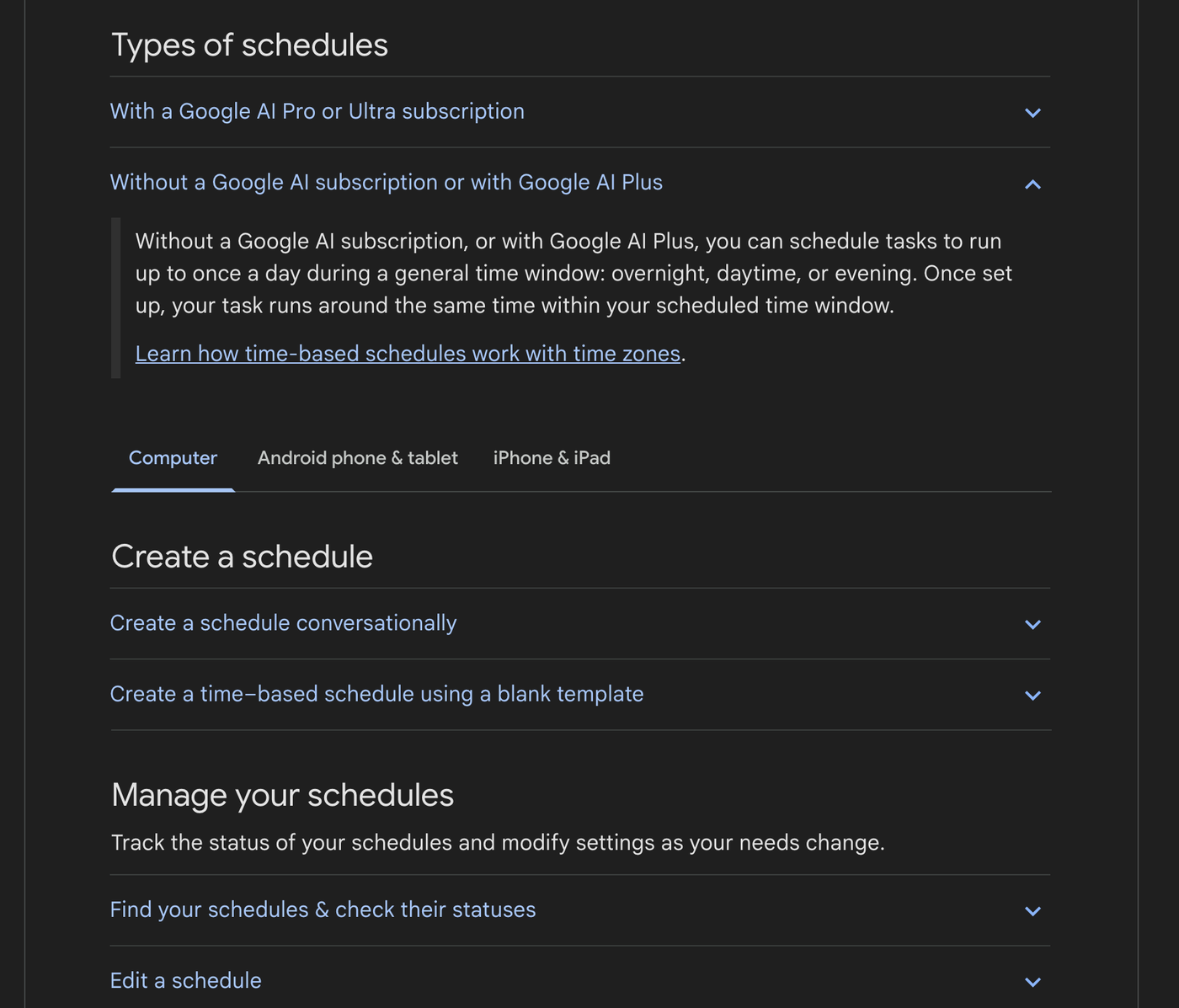
The output lands in a dedicated task thread you can reopen from desktop, Mac, or mobile before your first meeting. Each cited Drive file appears in the thread’s Files panel so you can jump straight into a commented document without searching Drive manually.
Test the briefing via Scheduled > More > Run now and check three details before trusting it daily. Confirm every meeting time matches Google Calendar verbatim, open the Files drawer to ensure Gemini read current documents rather than archived duplicates, and verify your Google Tasks list was not altered. If the briefing skips a morning during heavy usage, check whether you hit the free compute allowance or the 15-concurrent-task limit, both of which pause scheduled runs automatically.
4.Daily Flight, Hotel, and Shopping Price Watch
A daily price watch pairs Google Flights, Google Hotels, Google Search, and Gemini’s remote cloud browser to track fare changes or hardware deals against a fixed price ceiling. Rather than checking booking tabs every afternoon, you let Gemini compare current listings once a day and alert you only when an option beats your target budget.
Travel fares and consumer hardware prices move across days, not milliseconds, which makes them a natural match for the free tier’s once-daily schedule window. That distinction matters because Google explicitly notes that Tasks monitors are not meant for instant ticket drops or fast-moving flash sales. For price tracking across a multi-week booking window, however, a single daily daytime or evening pass catches genuine drops across all six free-rollout countries while keeping checkout under human review.
In Task mode, anchor your prompt to exact dates, cabin or room constraints, cancellation rules, and a hard numeric ceiling. If you live in the United States and use Google Wallet, Gemini can prepare an Agent Payments Protocol (AP2) checkout using Mastercard or Visa digital tokens while keeping your card rewards intact; outside the U.S., or whenever you prefer manual checkout, instruct Gemini to stop at a verified link.
Run this task once daily in the evening until December 15, 2026.

Track nonstop round-trip flights from San Francisco (SFO) to Tokyo (HND or NRT) for January 14 to January 24, 2027, economy cabin with one checked bag included, and refundable 4-star hotels within 15 minutes of Shinjuku Station.

1. Check Google Flights and Google Hotels for the lowest total prices matching those constraints.
2. Compare today's prices against the lowest prices found in previous runs of this thread and report the exact dollar change.
3. Only alert me with a "Book now" header if the flight drops below $850 round-trip OR the hotel drops below $190 per night.
4. Do not submit any web form or initiate payment—provide direct links and wait for my approval.
Each daily run appends a structured delta log to the task thread showing current totals, fare classes, refundable-room status, and whether your ceiling was met. On U.S. accounts where you later opt into Google Pay purchase tasks, Google’s payments documentation keeps Purchase confirmation available so Gemini sends a notification and waits for you to tap Pay with G Pay—and notes that changing an active purchase task requires canceling and recreating it rather than editing in place.
Validate the first run by clicking More > Run now and cross-checking two quoted fares directly against live Google Flights or merchant pages to confirm baggage fees and taxes were not dropped from the total. If Gemini needed to open a merchant website in the remote cloud browser, inspect the browser log in the thread and confirm it respected your ceiling without attempting form submission.
5.Weekly Research Packets and Downloadable Reports
A weekly research packet turns ongoing topic tracking—competitor releases, developer changelogs, policy updates, or market pricing—into a cited deliverable exported as Markdown in Canvas, a downloadable .pdf, .xlsx, .pptx, or a fresh Google Doc in Drive. Instead of pasting scattered chat answers into a document every Friday, you pair a recurring Task schedule with a reusable Skill that locks in your exact report template.
This workflow gets the most mileage out of two features Google built directly into Tasks: native multi-format file generation and SKILL.md instruction packages. According to Google’s Skills documentation, you can create a Skill under Customize > Skills by uploading a SKILL.md file or folder with reference files, then invoke it with / on desktop or @ on mobile across any task or schedule. Combining a reusable Skill with a weekly Task means every Friday’s report follows identical headings, citation rules, and table columns without repeating a 300-word prompt.
Start by creating a Skill named weekly-tech-brief containing your formatting standard, source-quality rules, and table layout. Then attach it to a weekly Task schedule using a prompt modeled on the example below.
# SKILL.md — weekly-tech-brief
## Role
Compile factual weekly technical briefings for engineering practitioners.

## Source Rules
- Prioritize official release notes, documentation changelogs, and primary repositories.
- Label third-party commentary as attributed claims, never as verified specifications.
- Include publication date and direct URL for every item.

## Output Format
1. Executive delta table: Tool | Change | Effective Date | Impact | Primary URL.
2. Three concise deep-dive sections covering breaking changes, pricing updates, and deprecations.
3. Export as both a Markdown Canvas draft and a formatted PDF named weekly-brief-YYYY-MM-DD.pdf.
Once that Skill is saved under Customize > Skills, trigger it inside a weekly Task prompt so Gemini executes the research in its cloud environment and packages the finished files automatically.
Run this task weekly on Friday during the daytime window using /weekly-tech-brief.

Research official changelog updates, pricing revisions, and new API features published over the past 7 days for Gemini API, OpenAI API, and Anthropic Claude API. Save the compiled summary to Canvas and generate a downloadable PDF and CSV changelog table.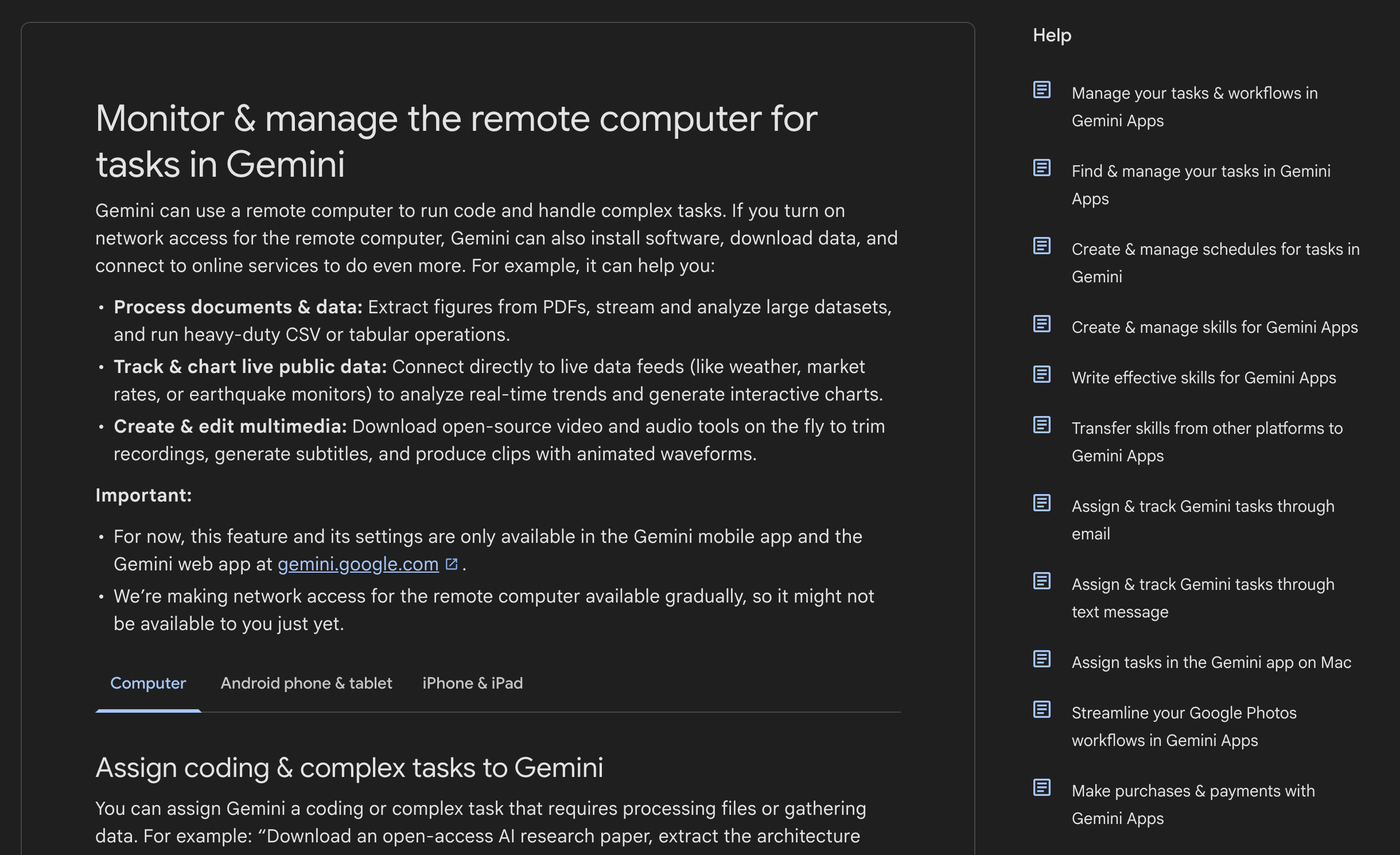
After each weekly run, Markdown drafts open straight inside Canvas—where you can edit on desktop or export to .md, .txt, or Google Drive—while binary deliverables like .pdf, .docx, .xlsx, or .pptx appear as clickable Open and Download links in the thread. Because Tasks run in the cloud, the weekly packet still finishes even if your laptop is closed.
Check the first generated packet by opening the Files drawer in the task thread, clicking three cited URLs to confirm they resolve to real recent announcements, and opening the exported .pdf or .xlsx locally to verify column alignment. If your weekly briefing needs live external APIs or package installations inside the remote computer, remember that Network access for remote computer is off by default under Settings > Task settings—only enable it for public-data research threads, and never mix private credentials into the same account’s remote workspace.
6.Monthly Utility, Medical, and Subscription Bill Audits
A monthly bill audit collects recurring utility, telecom, medical, or software subscription statements from Gmail—or from a billing portal after you sign in—and runs Python scripts inside Gemini’s remote computer microVM to compare line items month over month. Rather than skimming PDF attachments once a quarter and missing quiet rate hikes, you turn recurring billing checks into structured code analysis.
This is where Gemini’s cloud microVM separates Tasks from ordinary chat summarization. In Google’s defense-in-depth engineering breakdown, Google describes how Gemini parses downloaded PDF billing statements by writing and executing scripts inside its hardware-isolated Agent Compute Engine microVM to line up hourly usage against peak-pricing windows. Running real parsing code catches arithmetic errors, time-of-use spikes, and duplicate recurring charges that text-only models routinely overlook.
Configure this as a once-monthly daytime schedule so you are awake if Gemini pauses for a portal login. Keep credentials out of the prompt text completely: Google’s documentation explicitly warns against typing passwords or payment numbers into a task thread. When a portal requires sign-in, wait for Gemini to pause and either approve a Password Manager prompt or click View live > Take over task (or Take control on mobile) to enter credentials directly on the webpage.
Run this task monthly on the 2nd during the daytime window.

1. Search my Gmail for billing statements, invoices, and subscription receipts received in the past 35 days from my electric utility, internet provider, cloud hosting, and SaaS vendors.
2. Download attached PDF statements into the remote computer workspace and write a Python script to extract vendor name, billing period, total due, and line-item charges.
3. Compare this month's totals against the previous month's extracted figures and flag any increase over 10%, any new recurring charge, or any peak-rate surcharge.
4. Output a clean Markdown summary table plus a downloadable CSV ledger. Do not pay any bill, change any account plan, or submit any portal form.
When the run finishes, the thread presents a month-over-month anomaly table alongside a downloadable .csv ledger and the exact figures pulled from each statement. If a vendor does not email PDFs and requires portal access, Gemini pauses at the login page and hands browser control back to you instead of guessing or failing silently.
Audit every financial task with two checks documented in Google’s remote computer guide. First, click Computer > View executed code at the top of the task thread and scroll through the snapshots to confirm the Python script extracted numbers cleanly instead of misreading a column. Second, if you signed into a sensitive utility or healthcare portal using the remote browser, open Menu > Settings > Browser > Delete remote browser data afterward so authenticated session cookies do not linger between monthly runs.
7.Weekly Family and Project Calendar Conflict Triage
A weekly calendar conflict triage scans Gmail for school notices, youth-sports schedules, travel confirmations, and client milestone emails, extracts dates and times, cross-checks them against Google Calendar, and flags collisions before the week starts. On U.S. personal accounts, you can supplement the weekly scan by manually forwarding batches of schedule emails directly to gemini@google.com.
Calendar drift happens because logistical dates arrive buried inside multi-paragraph parent emails, forwarded PDFs, and vendor threads rather than clean .ics invites. Batching those threads once a week in an evening or daytime Task schedule catches double-booked practices, overlapping flights, and forgotten RSVPs across all six free countries while staying comfortably inside the 10-schedule free budget.
Watch two operational quirks documented by Google before turning this loose. First, Google’s permissions guide notes that some Google Calendar actions—including updating events and sending invites—are designed to run automatically with check-ins only as needed, so explicitly instruct Gemini to present proposed events for review before modifying shared calendars or emailing other attendees. Second, if you use the U.S.-only Email with Gemini channel (Settings > Channels > Email with Gemini), Google does not support auto-forwarded emails, CC/BCC routing, + aliases like gemini+school@google.com, or more than 10 attachments per email (inline images count, though Drive links do not). Forwarding must be manual with gemini@google.com in the To field, and emailing a follow-up question creates a brand-new task rather than updating an existing one.
Run this task weekly on Sunday during the evening window.

1. Search Gmail from the past 7 days for emails from school domains, sports leagues, medical clinics, travel providers, or threads labeled "Logistics" that mention specific dates, times, or deadlines over the next 30 days.
2. Extract each event (title, date, start/end time, location, and source email subject) and cross-check it against my Google Calendar.
3. Flag every direct overlap or travel-buffer conflict (less than 30 minutes between off-site events).
4. Present a review table of proposed new events and conflict resolutions. Do not create calendar invites for other people or send any emails or texts until I approve the list in this thread.
The weekly run outputs a concise schedule audit showing newly discovered dates, exact time collisions, and proposed event drafts ready for your yes-or-no reply in the thread. If you forward a batch of school newsletters manually to gemini@google.com mid-week (U.S. accounts), Gemini replies with a direct link to the new task thread where you can confirm the extracted events in one pass.
Check the first run by comparing three extracted dates and time zones against the original emails—especially multi-day school breaks and flight arrival times, which models can misread when time zones are omitted. Then inspect Customize > Connectors > Google Workspace to confirm your default permission choices match how much autonomy you want Calendar and Gmail to hold across future task threads.
8.Wiring Skills, Permissions, and Sandbox Guardrails
Running six background schedules reliably comes down to configuring three layers once—reusable Skills, connector permissions, and sandbox hygiene—before handing over real workflows.
Start by separating reusable rules from recurring schedules. Store your formatting specs, exclusion lists, and tone rules in Customize > Skills (using SKILL.md uploads or Gemini’s builder) rather than pasting long policy blocks into every Task prompt. Skills stack across tasks, update in one place, and keep your six recurring prompts short and auditable. If you already maintain Markdown skill files on another platform, Google provides a dedicated skill import path so you do not have to rewrite instructions from scratch.
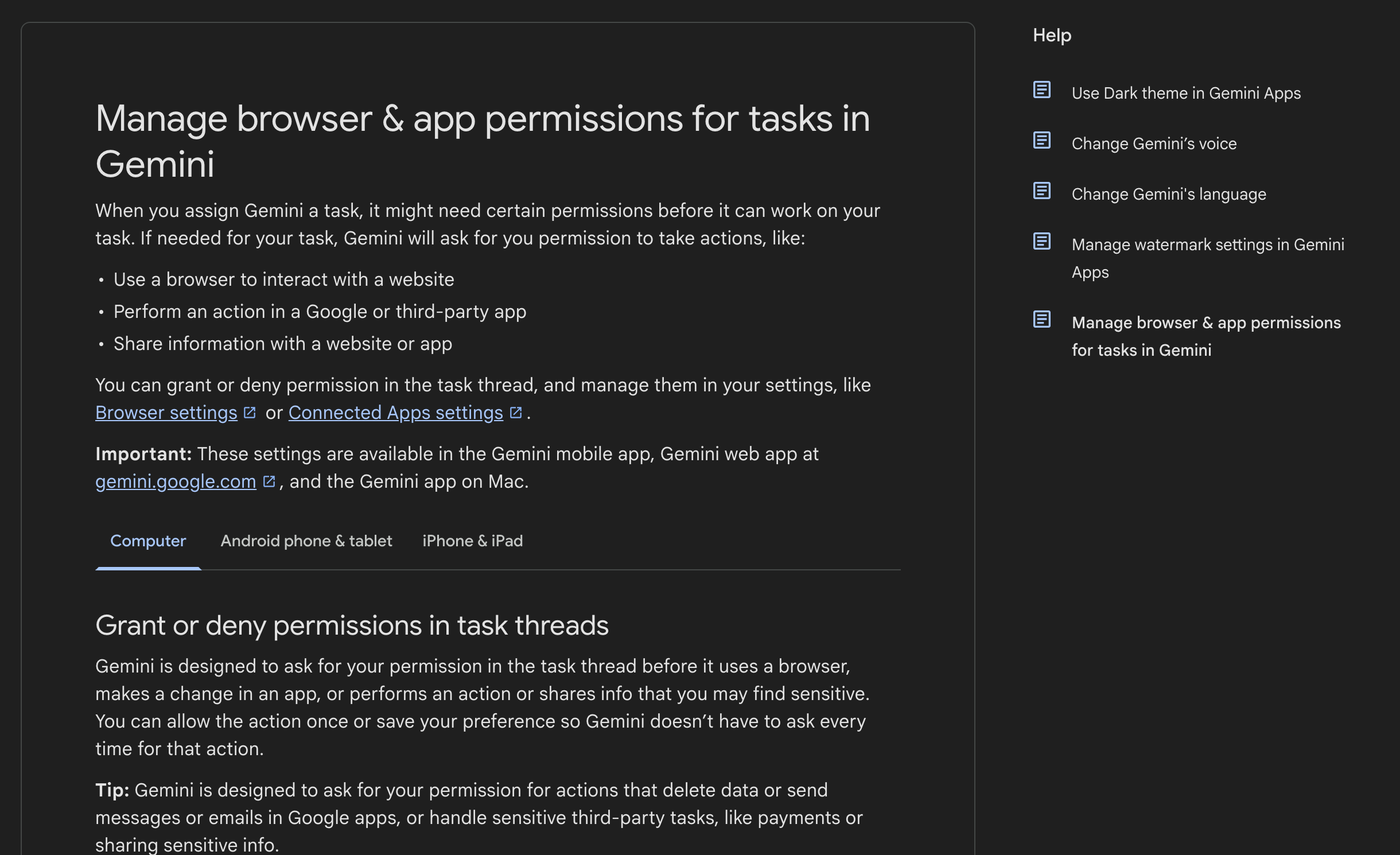
Next, audit what Gemini is allowed to execute without asking. Under Customize > Connectors, every connected app action supports Always ask or Always allow, while in-thread prompts offer Don’t allow (stops immediately without retrying another route), Allow once, Allow for this chat (Google services only), and Always allow (writes back to global connector settings). Even when you grant Always allow, Google’s Action Safety Agent enforces mandatory confirmation before sending communications, deleting data, sharing health or financial details, submitting web forms, completing purchases, or signing in via Sign in with Google or Password Manager. Keep the two documented exceptions in mind: bulk edits to private items in Google Tasks can run without confirmation, and some Google Calendar updates and invites run automatically unless your prompt restricts them.
Finally, understand where your tasks actually execute. Under the hood, Google Cloud’s Agent Compute Engine separates the model planner (“brain”) from a hardware-isolated microVM sandbox (“hands”) holding zero credentials inside the sandbox. That sandbox is wrapped by multi-stage prompt-injection classifiers, deterministic outbound link rules alongside Safe Browsing, Policy Guardian pre-execution inspection for shell commands and file edits, and live User Takeover for logins.
One architectural detail deserves active housekeeping: Google’s remote computer guide notes that all your tasks share one persistent remote computer per account, retaining installed tools, configs, and files until expiry or manual deletion. Leave Network access for remote computer turned off unless a research task specifically requires live package or API access, never store API keys or secrets in task files while network access is on, and clear remote browser and code-execution data in Settings > Task settings after any sensitive portal audit.