Claude Code has been able to write SwiftUI for a long time. What it could not do was look at the result. You built the app, ran it in Xcode, tapped through the screen, and typed back what broke. Claude Code Desktop’s iOS Simulator pane removes that relay: Claude builds the app, launches it in a simulated iPhone docked next to the conversation, taps through the flow and reads the screen to check its own change.
I reviewed Anthropic’s iOS Simulator documentation, the official announcements and practitioner reports as of November 21, 2026, to put the full workflow in one place: what to install, how to phrase the request, what Claude can do without asking, and the new iPhone Duo fold test that arrived on November 16. I have not run it on my own app, so every behaviour below is the documented one, and the prompts outside the docs are suggested phrasing.
In this article
1.What the Simulator Pane Actually Does
The iOS Simulator pane is a live, interactive view of Apple’s iOS Simulator that sits beside your chat in the Code tab of Claude Code Desktop. When Claude builds, installs, launches or checks your app in a simulator, the pane opens on its own and streams the device screen. Claude drives that device directly: it taps, types, takes screenshots and reads what is on screen, then decides whether its change worked.
That matters because UI bugs rarely show up in a compiler log. A button that renders off screen, a list that never refreshes or a sheet that will not dismiss all build cleanly. Before the pane, Claude had to guess, or wait for you to describe the problem. Now the edit, the build and the visual check happen in one loop that Claude can repeat until the screen behaves.
The pane drives the simulator without computer use, so it never takes over your screen or hides your other windows, and it does not need the macOS Accessibility and Screen Recording permissions that computer use requires. Anthropic launched it in public beta on July 21, 2026, on the Pro, Max, Ultra, Team and Enterprise plans. Enterprise organizations with a HIPAA configuration and anyone on a third-party model provider do not get it.
2.Set Up Your Mac Before the First Run
The pane uses Apple’s own simulator tooling, which the desktop app does not ship. Before you open a session you need four things: Claude Desktop v1.24012.0 or later, a Mac (the iOS Simulator only runs on macOS), Xcode with the iOS platform installed, and a local session. Cloud and SSH sessions run Claude on a different machine that cannot reach the simulators on your Mac, so the pane never appears there.
Getting this right first saves the most common dead end: you ask Claude to run the app and nothing opens. Usually one of three things is wrong: Xcode has no simulator runtime yet, the machine points at the wrong Xcode, or the session is not local. Anthropic recommends Xcode 26.x or Xcode 27, and the pane works with either.
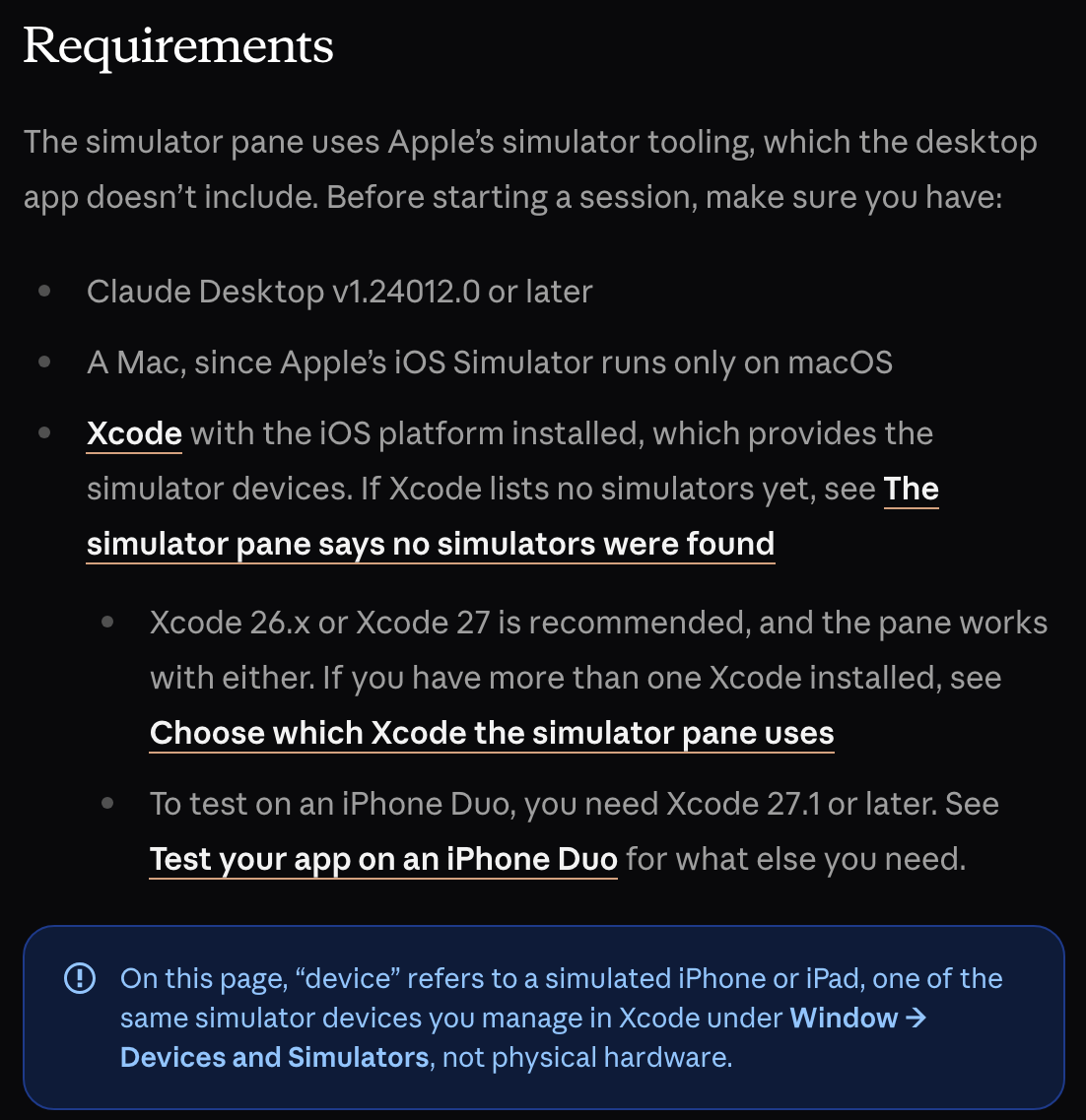
If you have more than one Xcode installed, the pane uses whichever one xcode-select points at. The first command below prints the selected install; the second switches to another one by its path. Replace the example path with your own, then quit and reopen Claude Desktop so the pane picks up the change.
Bash
xcode-select -p
sudo xcode-select -s /Applications/Xcode-26.4.app
If Xcode is installed but lists no simulators, the pane shows a setup checklist and ticks items off as you finish them. You can also install the missing iOS simulator runtime from the command line instead of Xcode’s settings window.
Bash
xcodebuild -downloadPlatform iOSTo check the setup, run xcode-select -p and confirm it prints the Developer folder of the Xcode you want, such as /Applications/Xcode-26.4.app/Contents/Developer. Then open the pane’s device menu in a session: it should list each simulator with its OS version and whether it is booted.
3.Run the App and Let Claude Test It
There is no command or setting that opens the pane. Claude opens it when it runs your app in a simulator, so the whole trick is phrasing the task around running or verifying the app. In the Code tab, start a session with your app’s project as the project folder. Any project that builds an app for the iOS Simulator works, whether it is a fresh SwiftUI template or a large existing codebase.
The wording matters because Claude only reaches for the simulator when the goal involves seeing the app. “Fix the onboarding layout” may end with an edited file and a successful build. “Fix the onboarding layout and check it in the simulator” ends with Claude looking at the screen. This is the example request from Anthropic’s documentation, and it is a good template for your own:
When the app launches, the pane opens next to the conversation. The first time Claude uses a device, the desktop app asks you to allow it; that consent covers controlling the device and taking screenshots, and you give it once per device, not once per session. Claude then installs the app, taps through it and reads the screen while you watch. When your question is about seeing the app, such as “does the new screen look right?”, Claude starts a simulator before it begins the work.
Screen size changes what breaks, so name the device when it matters. The pane shows whichever device the app actually launched in, and if your prompt names none, Claude reuses a simulator that is already running, even one a parallel session opened. To give two sessions separate devices, name a different one in each prompt. The request below is my suggested phrasing for a small-screen regression pass:
The launch image from Anthropic’s announcement shows what a finished loop looks like. The user asked for actions on a plant card, then wrote “Test this flow live.” Claude built the scheme with xcodebuild, installed and launched the app, tapped “Water now”, and confirmed in the accessibility tree that the pill changed to Done and the attention counter dropped from 3 to 2.
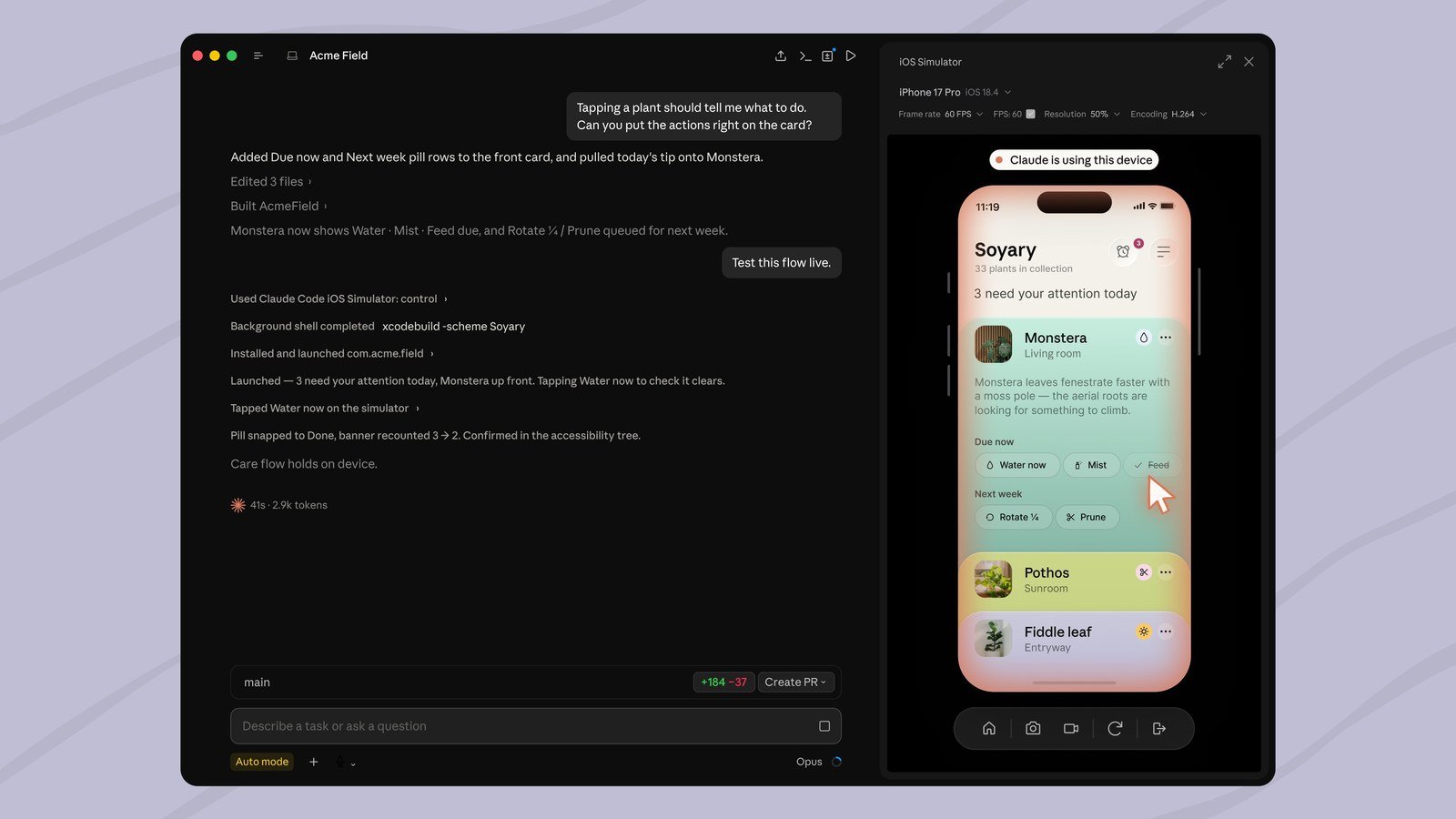
You know it worked when the pane shows a “Claude is using this device” badge above the screen and Claude’s reply names what it tapped and what it saw. After Claude fixes a bug or changes a screen, ask it to verify that change in the simulator; do not assume a clean build means a correct screen.
4.Tap Along Without Breaking the Test
The pane is not only a viewer. While Claude works, or between tasks, you can use the device yourself, and you and Claude share the same device and app state. That is useful when you want Claude to check a screen that is several taps deep: navigate there yourself, then ask. It is also the main way to spoil a test, because your taps change what Claude sees.
Click and drag on the device screen to tap and swipe. The pane uses the same hardware shortcuts as Apple’s Simulator app, so these work without learning anything new:
- Cmd+Shift+H goes to the Home screen, and Cmd+L locks the device.
- Cmd+Up Arrow and Cmd+Down Arrow change the volume.
- Cmd+Right Arrow, or the rotate button, turns the device a quarter turn clockwise.
- Cmd+S saves a screenshot and Cmd+R starts a screen recording; both files land on your Desktop.
Two more controls keep the pane from getting in the way. Detach simulator stops streaming without shutting the device down, and a Display menu, when shown, lowers the stream’s frame rate or resolution if the pane strains your Mac; it changes only how the pane displays the device, not how the app runs. You can minimize or close the pane, and Claude can keep using the device either way.
Gestures are one place where the pane beats older setups. Early practitioner Chris Raroque reported that it handles multi-touch gestures, such as reordering a task list, which he called one of the biggest gaps in XcodeBuildMCP, while noting “still a few bugs” in the beta. That makes drag-and-drop and swipe-to-delete flows worth handing to Claude instead of testing by hand.
To check you are not interfering, watch the badge: while Claude drives the device, the pane shows “Claude is using this device” above the screen. Hold off tapping until it clears, so Claude’s result reflects the app rather than your input. Devices that Desktop booted shut down on their own when you quit the app, archive the session, or 10 minutes after you detach them; devices you booted yourself are never shut down automatically.
5.Know Which Actions Still Ask First
Once you allow a device, Claude’s actions on it, tapping, typing and taking screenshots, run without prompts. Anthropic treats them as carrying the same trust as you clicking in the pane, because they only touch the simulated device. Three actions are different: they follow your session’s permission mode even after you allow the device, because they can reach beyond it.
This is the part to understand before you leave Claude alone with a project. A build is not a sandboxed event: xcodebuild runs your project’s build scripts on your Mac, with your user’s access. Launching is not limited to your app either: Claude can run any app it names. The documentation lists the three gated actions and the reason for each:
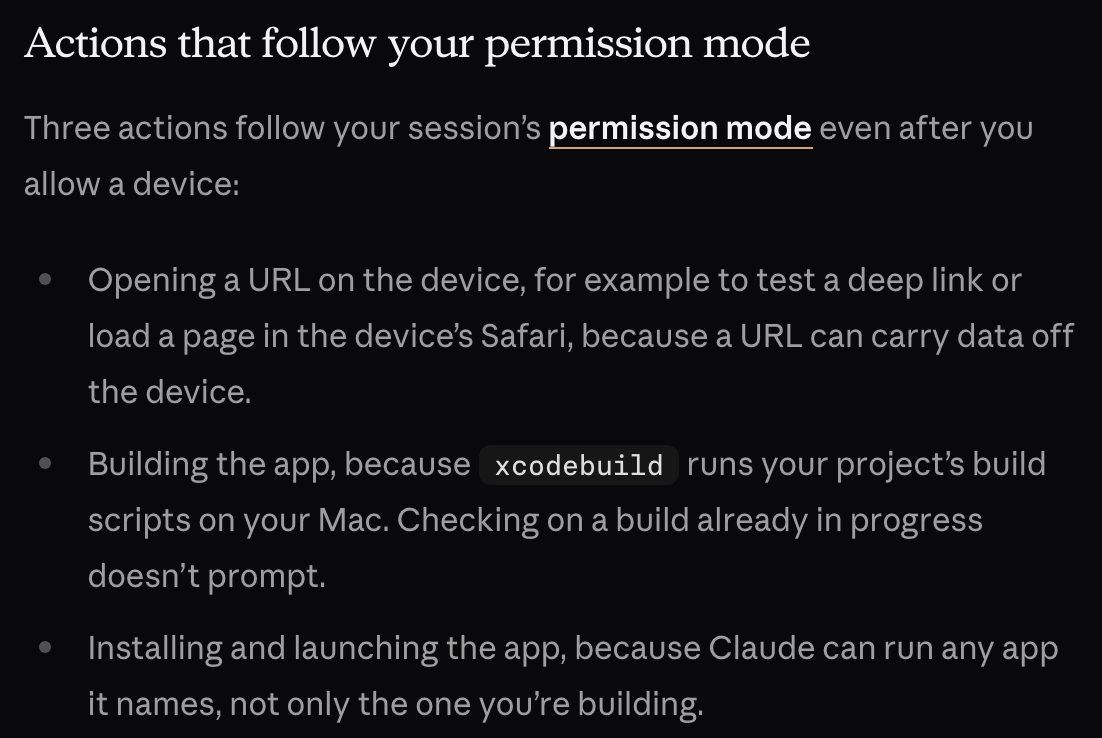
In practice, decide the permission mode by what your build phases do. If your project has run-script phases that touch the network, sign binaries or write outside the project, keep a mode that prompts before builds. A plain SwiftUI app with no custom scripts carries less risk, and Anthropic notes that checking on a build already in progress does not prompt.
Privacy works per device too. Claude’s screenshots of the simulator are sent to Anthropic and kept under your normal conversation retention settings, so do not sign in to real accounts on a device Claude uses; seed test accounts instead. If you decline Claude’s request, the device does not attach. You can still attach it for your own taps (Attach simulator, then Continue, then Cancel) and later click Let Claude use it when you are ready.
Teams have two switches. The disableMobileSimulatorTools managed setting blocks Claude’s simulator tools while leaving the pane usable for your own taps, and users cannot override it in the app. The requireCoworkFullVmSandbox policy key runs Claude’s tools in an isolated virtual machine and disables the pane entirely. To check your own setup, start a new app on a fresh device: you should see the device consent once, then a permission prompt for the build and launch if your mode requires one.
6.Test Foldable Layouts on iPhone Duo
On November 16, 2026, Anthropic added iPhone Duo to the pane in public beta. You can run your app on a Duo simulator and fold it into each pose: closed, half open and open. Claude can fold it too, either to one of the three poses or to a half-open hinge angle anywhere from 1 to 179 degrees, and check each layout.
A foldable multiplies the screens to verify. Every view now has a closed layout, an open layout and the awkward states in between, where safe areas and split layouts tend to break. Walking every pose by hand for every change is exactly the repetitive check worth handing off.
Claude Code on desktop now supports iPhone Duo in the iOS simulator (public beta).
You can run your app on Duo next to your conversation and Claude can fold and unfold the device to test each layout. pic.twitter.com/ZwM3ZpvjBh
— ClaudeDevs (@ClaudeDevs) November 16, 2026
The Duo needs newer software than the pane itself: Claude Desktop v4.29.0 or later (update with Claude > Check for Updates… and restart), plus Xcode 27.1 or later with its iOS 27.1 simulator runtime, which contains the Duo device. If the device menu does not list a Duo yet, choose Add simulator… at the end of the device list and pick an iPhone Duo device type. Then ask for the poses by name, as in Anthropic’s example:
Before a Duo layout check, Claude may ask whether to export Xcode’s agent skills to your personal skills folder. These skills ship with Xcode to guide coding agents, and once exported, Claude Code loads them in your other projects too. One of them prepares an app’s layout for the Duo. For an existing app, @ClaudeDevs describes the flow: ask Claude to get the app ready for iPhone Duo, and it can offer Apple’s App Resizability skill, which scans the project for layout issues and suggests fixes; Claude makes only the ones you approve and checks them on the Duo simulator.
If you want Xcode’s own tools in every session, Anthropic’s official plugin marketplace also lists an Xcode plugin whose author is Apple Inc. Its listing says it builds, runs and tests schemes, renders SwiftUI previews, drives simulators and devices, reads build logs and searches Apple’s developer documentation. It is installed from the marketplace like any other plugin:
Install
/plugin install xcode@claude-plugins-officialThe listing loads the plugin from your local Xcode through xcrun agent, so it needs an Xcode version that provides that command. You know the Duo run worked when Claude reports the same screen in each pose you asked for, and any App Resizability fix appears in the diff only after you approved it.
7.Where the Simulator Stops
The pane drives simulated devices only. Claude cannot control a physical iPhone or iPad. Real hardware behaviour, such as camera input, sensors, thermal throttling and true device performance, stays outside what a simulator proves. For those, run the app on the device from Xcode yourself, then describe what you see or attach a screenshot for Claude to work from.
The other limits are about where it runs. The pane is macOS only and local only. In the Claude Code CLI, the same request reaches the simulator through computer use instead: you enable the built-in computer-use server in /mcp, grant Accessibility and Screen Recording, and Claude controls the simulator on your actual screen the same way you would with a mouse, which Anthropic describes as the broadest and slowest way it reaches an app. And it is still a public beta, so treat a passing simulator run as a strong first check, not a release sign-off.

One Comment