Anthropic shipped Install as app in beta on November 24, 2026, letting macOS and Windows users turn interactive Claude Artifacts into standalone desktop windows with their own icons, live updates, and opt-in operating system permissions. You do not configure Electron, buy a code-signing certificate, or manage a separate API key.
The catch sits right behind the convenience. Installed apps stay tethered to an active online Claude Desktop session, consume your regular plan usage limits, and can request Full access to this computer without Anthropic reviewing the code first. Understanding how the runtime, five OS permissions, version-pinned approvals, and MDM lockdown keys actually work determines whether this feature becomes a reliable daily workbench or an unmanaged local risk.
In this article
- How Claude Artifact Desktop Apps Actually Work
- Build and Install an Artifact as a Desktop App
- The Three Permission Tiers and Five OS Capabilities
- Security Boundaries, Re-Authorization, and Revoking Access
- Team, Enterprise, and MDM Governance Controls
- Beta Limitations and When to Build a Native App Instead
- Putting Installed Artifact Apps Into Daily Practice
1.How Claude Artifact Desktop Apps Actually Work
An installed artifact is still the same hosted Claude Artifact, broken out of the main chat interface into its own dedicated macOS or Windows window with a standalone launcher icon. According to Anthropic’s Install as app launch announcement, the feature requires Claude Desktop version 6.28899.0 or later on macOS or Windows and is rolling out across Free, Pro, Max, Ultra, Team, and Enterprise plans.
That architecture behaves very differently from browser shortcuts like Chrome’s “Add to Dock,” “Add browser shortcut,” or “Add to Home Screen.” Browser shortcuts only wrap a URL inside a stripped tab; they cannot register global keyboard shortcuts, mount macOS menu bar items, float over other applications, or execute local programs. Installed artifact apps run inside Claude Desktop’s managed host shell, inherit your active Claude login and workspace connectors such as Slack or Google Calendar, and bill every Claude call against your existing plan quota.
Because the desktop app remains linked to the underlying artifact rather than compiling a frozen binary, updates propagate automatically. When you or another editor modify the artifact inside Claude, the installed desktop app reflects the new code the next time it runs—without rebuilding an installer or re-distributing a .dmg or .exe package.
Anthropic engineer Felix Rieseberg, co-maintainer of Electron, published a retro desktop showcase of internal apps built with the beta to illustrate how far the model reaches beyond static calculators. The highlighted builds span five distinct desktop patterns: Linnet (a full layered image editor), Phosphor (a custom-styled local file manager), Sift (a rule-based folder organizer driven by Claude), Tern (a terminal paired with an inline Claude explainer), and Vitals (a menu bar and system tray hardware monitor).
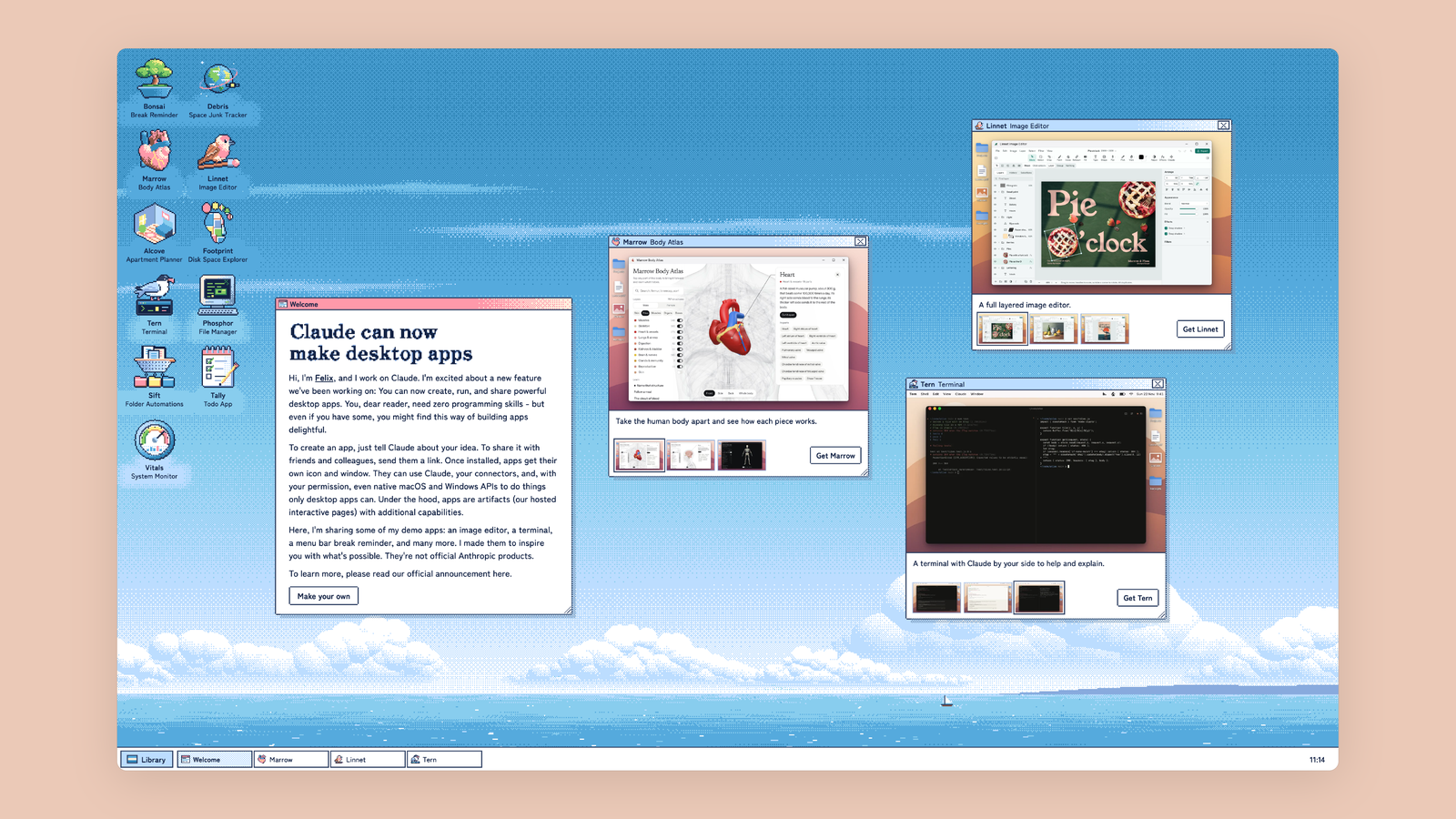
Those five examples reveal the practical design rule for choosing what to install. If a utility runs alongside other software all day—monitoring metrics, pulling live connector context before meetings, or sorting downloads—detaching it from a buried chat thread immediately pays off. Before installing anything, verify that your workflow can stay online and signed in to Claude Desktop, because the standalone window will not launch offline.
2.Build and Install an Artifact as a Desktop App
Turning a chat prompt into an installed desktop utility takes four direct steps inside Claude Desktop, provided you start from the native desktop client rather than a web browser. If you open an artifact on claude.ai in Chrome or Safari, the installation option will not appear at all.
First, confirm your desktop client meets the 6.28899.0 version floor documented in the Claude Help Center install guide. On macOS, open the top menu bar and select Claude > Check for Updates. On Windows, click the top-left menu button (☰), navigate to Help > Check for Updates, and restart after patching.
Next, describe the utility in chat and explicitly name the operating system hooks you want so Claude builds the right desktop capabilities into the artifact from the start. The prompt below asks Claude to generate a lightweight menu-bar focus timer with desktop notifications and a built-in install button, while deliberately avoiding local file-system access.
Requirements:
– Add a menu bar / system tray countdown indicator that stays active when the main window closes.
– Trigger a native desktop notification when each 25-minute focus block or 5-minute break finishes.
– Register a global keyboard shortcut to pause or resume the active timer from any application.
– Include an inline “Install as app” button in the top-right header.
– Do not request full computer access or load external third-party scripts from remote CDNs.
Once Claude renders the interactive artifact in the main Claude Desktop window, install it through any of three entry points: click the artifact’s title menu, right-click anywhere inside the artifact pane, or open the Share menu, then select Install as app and confirm by clicking Install. Even when an artifact renders its own custom install button, Claude Desktop always intercepts the click and requires explicit confirmation before creating the desktop app.
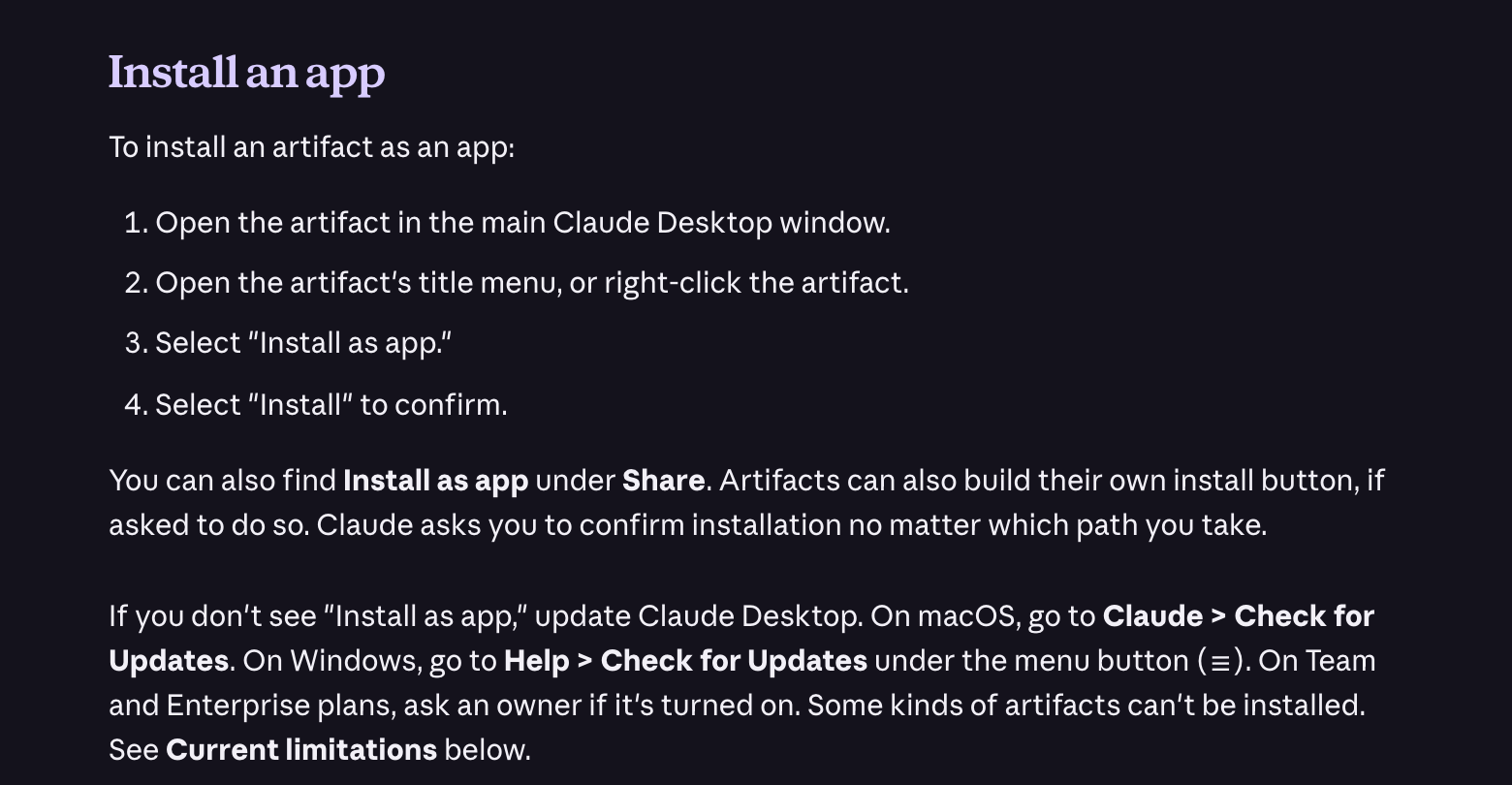
After installation completes, macOS places the app inside the Claude Apps folder inside your home directory’s Applications folder (~/Applications/Claude Apps), making it immediately searchable through Spotlight and the Apps launcher. Right-click its Dock icon and choose Options > Keep in Dock if you want a permanent slot. On Windows, the app appears under the Start menu’s Claude Apps folder and drops a shortcut onto your desktop; inside Claude Desktop on either OS, you can launch or inspect installed tools from File > Apps (located under ☰ on Windows).
Background exit rule: An installed app that uses a macOS menu bar item or Windows system tray icon keeps running after you click the window close button. To shut it down completely, press
Cmd+Qor quit from the Dock on macOS, or open the tray icon menu and choose Exit on Windows.
To verify your macOS installation landed cleanly in the user-scoped directory rather than polluting system-wide /Applications, inspect the folder from a terminal before pinning it.
Bash
ls -la "$HOME/Applications/Claude Apps"If the directory lists your app bundle and opening it via Spotlight spawns an independent window without shifting focus to the main Claude Desktop client, installation succeeded.
3.The Three Permission Tiers and Five OS Capabilities
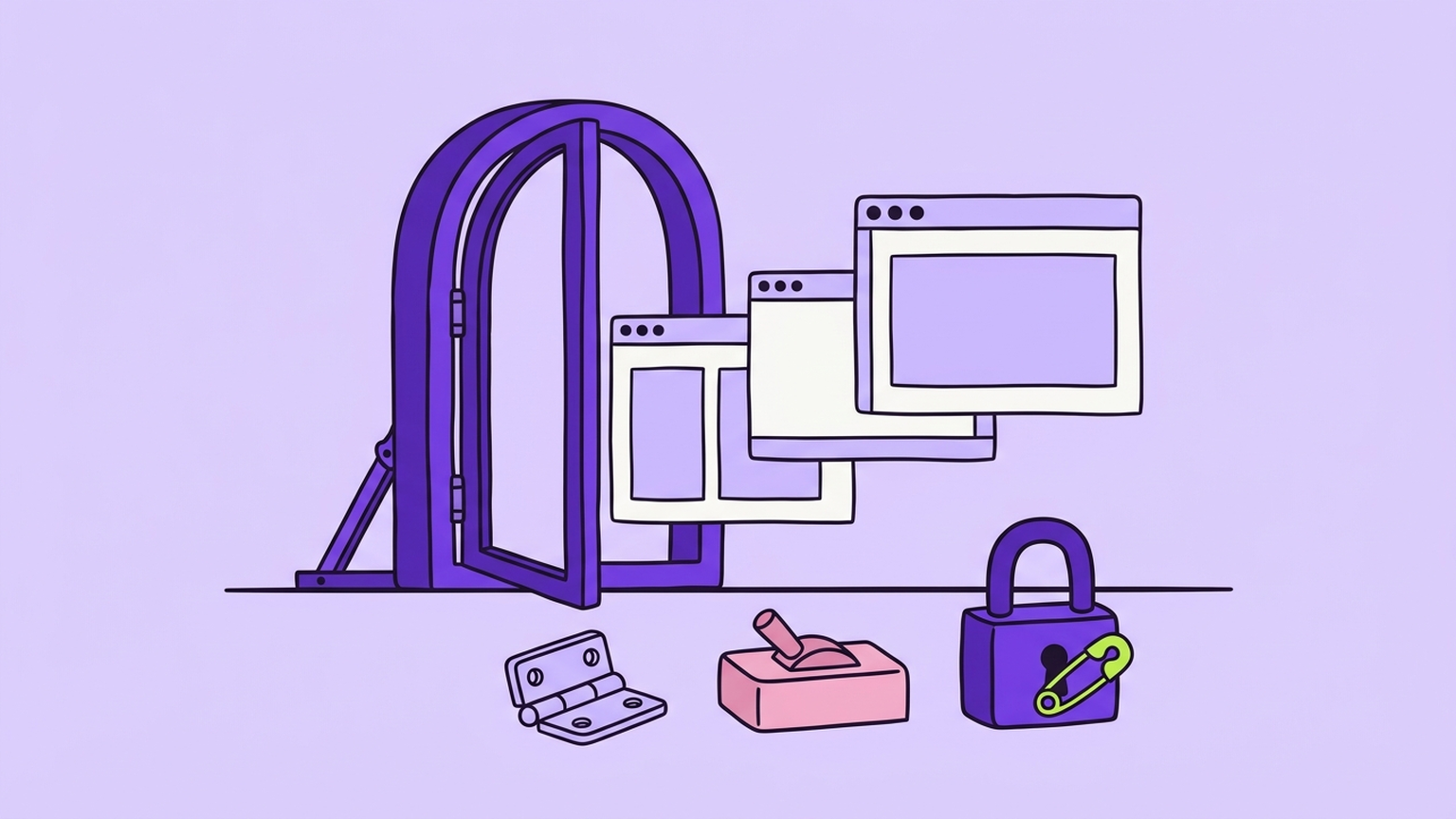
Installed artifact apps start locked inside a browser-equivalent sandbox and cannot touch operating system features until you explicitly approve each request. Every capability prompt offers a binary choice—Allow or Don’t allow—mapped across three escalating permission tiers and five distinct OS capabilities.
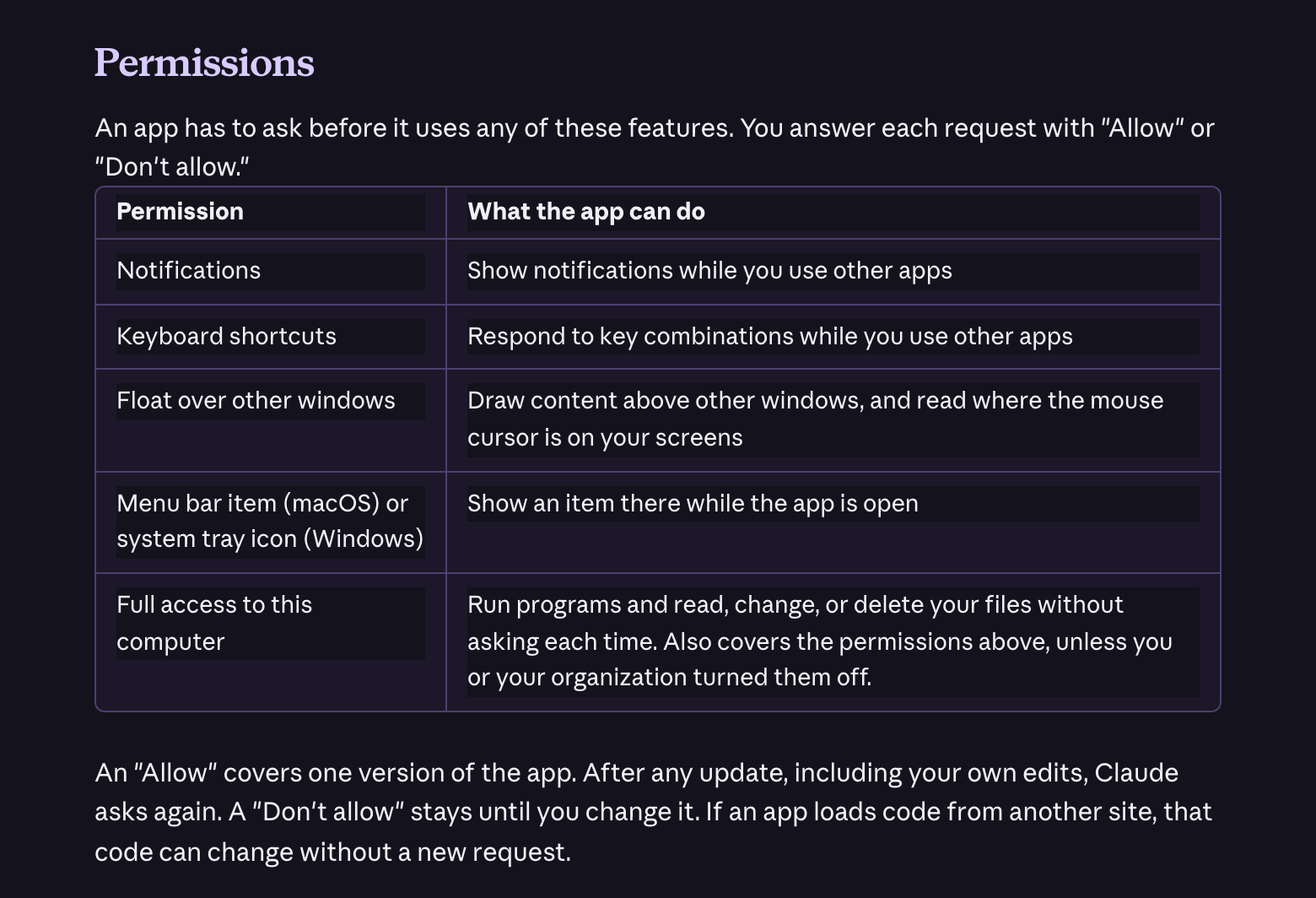
Understanding what each permission actually exposes prevents accidental over-privileging, especially when a seemingly harmless widget requests extra capabilities. The matrix below maps all three tiers and five official capabilities against their concrete operational scope and realistic daily use cases.
| Permission Tier | Specific Capability | What the App Can Actually Do | Safe Minimum Use Case |
|---|---|---|---|
| Default | Standard web sandbox | Runs isolated UI, calls Claude and active connectors; zero local OS access | Meeting-prep dashboards, pricing calculators, writing scratchpads |
| App permissions | Notifications | Displays native OS alerts while you work in other applications | Stretch reminders, timer completions, Slack/calendar alert feeds |
| App permissions | Keyboard shortcuts | Listens for global key combinations even when another app has focus | Quick-capture note boxes, push-to-talk timers, clipboard formatters |
| App permissions | Float over other windows | Renders UI above other windows and reads mouse cursor coordinates across screens | Always-on-top teleprompters, screen rulers, floating scratchpads |
| App permissions | Menu bar / system tray item | Mounts a persistent top-bar (macOS) or tray (Windows) item while open | Live Pomodoro countdowns, hardware monitors, quick-toggle widgets |
| Full computer access | Full access to this computer | Runs local programs and reads, modifies, or deletes files without per-action prompts; includes all four App permissions unless disabled | Self-authored batch photo renamers, local folder sorters, terminal wrappers |
Two details in that table deserve extra attention before you click Allow. First, Float over other windows is not purely cosmetic: Anthropic explicitly notes that granting it also lets the app read where your mouse cursor sits across your screens. Second, Full access to this computer subsumes all four App permissions automatically unless you or your organization turned them off, and it runs programs or deletes files without asking per operation.
Verify least privilege on every new build by starting with Default or the smallest subset of App permissions that gets the job done. If a simple dashboard or checklist prompts for Full access to this computer, deny the prompt and inspect the artifact code before ever reconsidering.
4.Security Boundaries, Re-Authorization, and Revoking Access
Anthropic states plainly in its documentation that it does not review apps before you install them. To offset the risk of running live-synced AI-generated code on local desktops, the runtime layers four mechanical safeguards over the permission prompts—along with two important gaps that builders must handle themselves.
The strongest safeguard is version-pinned authorization. An Allow decision covers only the exact current version of the artifact. The moment anyone edits the artifact—including your own minor UI tweak in chat—Claude invalidates the prior grant and asks for permission again on the next run. A Don’t allow decision behaves in the opposite direction: it stays sticky across updates until you manually flip it back.
The critical caveat to version pinning is remote external code. If an artifact loads JavaScript or assets from an external website or mutable CDN URL, that remote code can change upstream without modifying the artifact version inside Claude—meaning Claude will not trigger a new permission prompt. Never grant Full access to this computer to any artifact that imports unpinned third-party scripts over the network.
The second safeguard restricts author provenance for full access. Claude blocks apps from requesting Full access to this computer whenever someone outside your organization authored part of the app, or when Claude cannot confirm authorship. On Free, Pro, Max, and Ultra plans, “outside your organization” means literally anyone other than you. For lower tiers, apps built outside your organization trigger an explicit origin warning in the permission dialog.
When you need to tighten or revoke permissions on a running app, open the permission sheet directly from the OS or Claude Desktop:
- macOS: Click the app’s name in the top menu bar and select Permissions.
- Windows: Right-click the app’s title bar (or press
Alt+Space) and select Permissions. - Claude Desktop: While the app is running, open File > Apps, select the app, and click Permissions (use Report Artifact in the same menu for abusive apps).
Turning off Full access to this computer may reload or close the app immediately, so save open work first. Revoking full access halts child programs the app launched, except processes that explicitly detached themselves from the app, and it never rolls back file edits or deletions already performed. Similarly, if an owner stops sharing a collaborative app with you, Claude terminates its started programs within up to about 20 minutes—or longer if your machine is offline, signed out, or switched to another organization.
To remove an app completely, open File > Apps in Claude Desktop, select the app, and click Uninstall. On macOS, Claude moves the app bundle to Trash; on Windows, it deletes the Start menu and desktop shortcuts, though you must unpin Dock, taskbar, or Start pins manually. Uninstalling strips every granted permission while leaving the source artifact untouched in your Claude account. Test the loop once on a disposable utility: edit a single line of text in the artifact, relaunch the desktop app, and confirm the permission dialog fires cleanly before trusting the workflow with production files.
5.Team, Enterprise, and MDM Governance Controls
For organizations running Claude Team or Enterprise plans, installed artifact apps introduce a dual-layer governance model documented in the Artifacts admin guide for Team and Enterprise plans. Admins control behavior through Organization settings > Artifacts (claude.ai/admin-settings/artifacts) and through OS-level MDM device policies. Whenever the two layers conflict, the stricter rule always wins.
The default posture differs sharply between Team and Enterprise plans, and compliance-sensitive workspaces inherit stricter starting blocks. The table below summarizes every organization toggle, default state, and propagation rule admins need to audit before rollout.
| Organization Setting | Scope | Team Default | Enterprise Default | Notes & Exclusions |
|---|---|---|---|---|
| Install as app | Lets users install artifacts as desktop apps (requires Artifacts enabled) | On | Off | Blocked on HIPAA-ready and hybrid deployments; starts Off on CMEK and org-wide ZDR |
| App permissions | Enables notifications, global shortcuts, menu bar/tray items, and floating windows | On | Off | Requires Install as app; turning off closes running apps within ~1 hour |
| Full access to the computer | Enables running local programs and reading/editing/deleting files without prompts | Off | Off | Disabled permanently for K-12 and Claude for Teachers; restricted to org-authored apps |
Organization-level changes take up to about an hour to propagate and apply only while the user has your corporate organization selected in Claude Desktop. When you flip a toggle off, running apps close and child programs stop (again, excluding detached processes or users who switched organizations), while installed bundles and saved permissions stay dormant and resume if you re-enable the toggle later.
Security teams also need to note a major telemetry limitation: Compliance API logging only records app opens and access checks as artifact views. Installations, individual permission Allow/Don’t allow answers, local file or process actions executed by an app, and admin changes to the three organization toggles are not logged in the Compliance API. In addition, limiting sign-in via forceLoginOrgUUID does not prevent a previously installed app from opening.
To govern personal Claude accounts signed in on company-owned laptops, deploy Anthropic’s three disable-only MDM device policy keys. Each key turns a capability off across every account on the machine within about five minutes (re-enabling requires restarting Claude Desktop):
isArtifactAppsEnabled— disables installed artifact apps entirely.isArtifactAppPermissionsEnabled— disables both App permissions and Full computer access.isArtifactAppFullAccessEnabled— disables Full computer access while keeping Default and App permissions intact.
On macOS, push these boolean keys as false inside a computer-level configuration profile targeting domain com.anthropic.claudefordesktop (computer-level values override user-level profiles). The plist snippet below disables Full computer access while permitting standard sandboxed apps and App permissions on managed Macs running Claude Desktop 6.6395.1 or later.
<?xml version="1.0" encoding="UTF-8"?>
<!DOCTYPE plist PUBLIC "-//Apple//DTD PLIST 1.0//EN" "http://www.apple.com/DTDs/PropertyList-1.0.dtd">
<plist version="1.0">
<dict>
    <key>isArtifactAppsEnabled</key>
    <true/>
    <key>isArtifactAppPermissionsEnabled</key>
    <true/>
    <key>isArtifactAppFullAccessEnabled</key>
    <false/>
</dict>
</plist>
On Windows, push DWORD 0 values under HKLM\SOFTWARE\Policies\Claude on machines running Claude Desktop 6.6395.0 or later. Once HKLM holds any Claude policy value, Claude ignores HKCU, so keep all Windows keys consolidated under HKLM. The registry file below mirrors the same macOS lockdown posture.
Windows Registry Editor Version 5.00

[HKEY_LOCAL_MACHINE\SOFTWARE\Policies\Claude]
"isArtifactAppsEnabled"=dword:00000001
"isArtifactAppPermissionsEnabled"=dword:00000001
"isArtifactAppFullAccessEnabled"=dword:00000000
Critical Windows rollout check: Update endpoints to Claude Desktop 6.6395.0+ (Windows) or 6.6395.1+ (macOS) before deploying these MDM keys. Anthropic warns that pushing unrecognized keys onto an older Windows client can unintentionally disable Computer Use. Also note that setting any MDM key marks the machine as managed, hiding the Release channel toggle and disabling features such as WSL sessions unless explicitly permitted.
6.Beta Limitations and When to Build a Native App Instead
Even with OS hooks enabled, installed artifact apps do not replace full local software engineering. Six documented launch constraints define the hard edges of the beta as of November 2026.
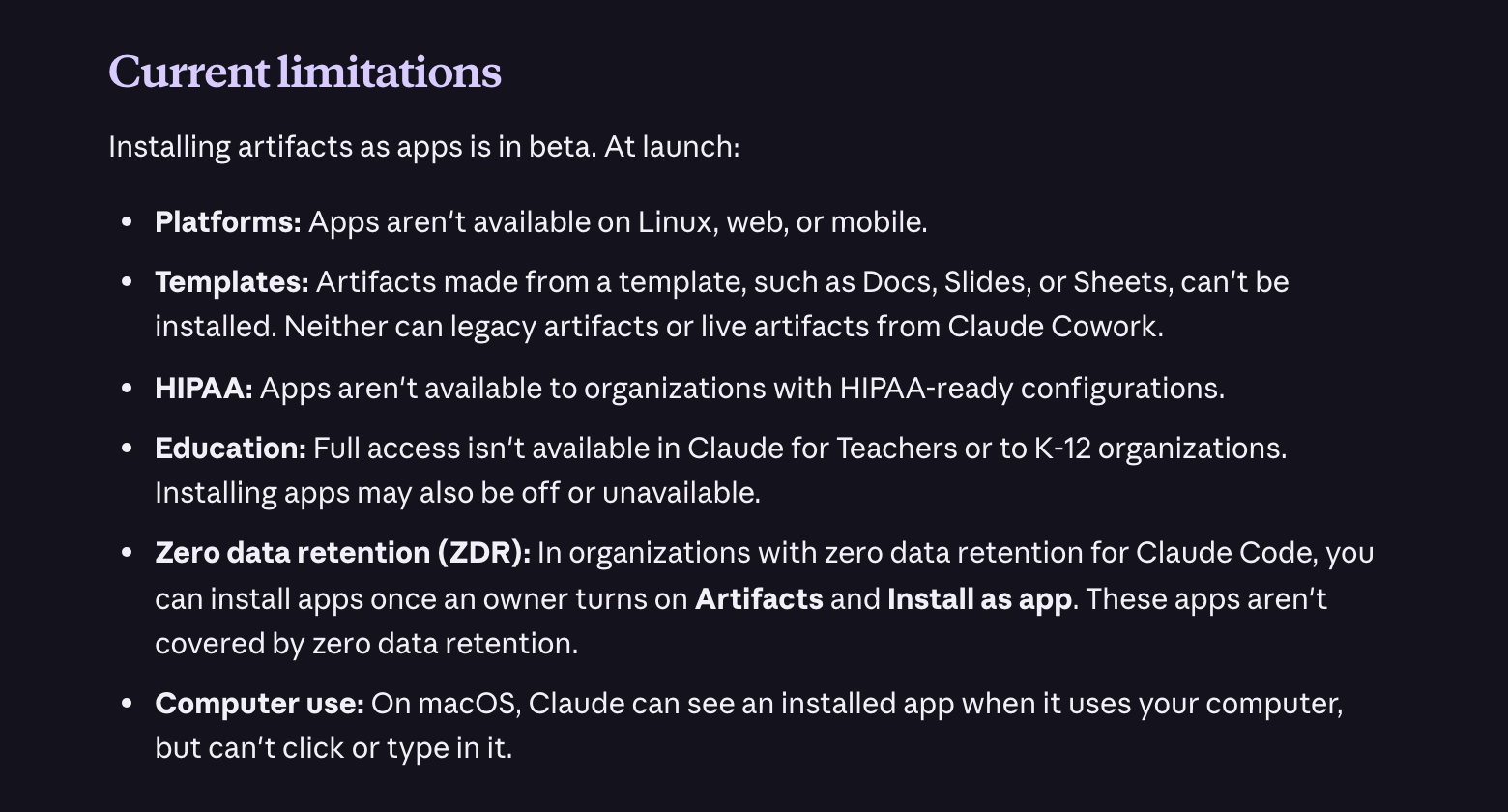
First, platform support is strictly macOS and Windows desktop. Linux users, web-only workflows, and iOS/Android mobile devices cannot install artifact apps. Second, templated and specialized artifacts are excluded: Claude Docs, Claude Slides, Claude Sheets, legacy chat artifacts, and live artifacts from Claude Cowork cannot be installed as apps.
Third, compliance and retention boundaries exclude regulated data flows. HIPAA-ready organizations and hybrid deployments cannot enable the feature at all. Organizations running Zero Data Retention (ZDR) for Claude Code can technically turn on Artifacts and Install as app, but Anthropic states explicitly that installed apps are not covered by Zero Data Retention. K-12 organizations and Claude for Teachers cannot enable Full computer access.
Fourth, connectivity and automation carry operational ceilings. Every app requires an active internet connection and a signed-in Claude Desktop session to launch, and every model call burns your standard plan limits—a tight bottleneck on Free plans. On macOS, there is also a subtle Computer Use boundary: when Claude uses your computer, it can see an installed artifact window on screen, but it cannot click or type inside it. If your workflow relies on automated UI testing or agent-driven desktop clicks—similar to letting Claude tap through an iPhone simulator for UI bug checks—an installed artifact window will block direct Computer Use interaction on macOS.
Use the comparison below to decide upfront whether a tool belongs in Claude’s Install as app beta or in a compiled desktop build created with Claude Code.
| Decision Criterion | Installed Claude Artifact App | Compiled Native / Electron / Tauri App |
|---|---|---|
| Setup & distribution speed | Seconds via Share > Install as app; zero signing or build pipeline | Requires local build toolchain, OS packaging, and notarization/signing |
| Offline execution | Not supported; requires online Claude Desktop sign-in | Full offline operation with optional local storage/models |
| Update model | Live auto-sync from chat edits; triggers permission re-prompt | Explicit versioned releases or auto-updater infrastructure |
| AI auth & billing | Inherits user’s Claude account and connectors; counts toward plan limits | Requires API key management, backend proxy, or user BYOK |
| Platform reach | macOS and Windows desktop only | macOS, Windows, Linux, and optional mobile targets |
| Compliance & auditability | Excluded from HIPAA and ZDR; local actions absent from Compliance API | Full custom logging, local-only data control, and enterprise signing |
Checking your project against those six rows takes thirty seconds and prevents building an offline field utility or HIPAA intake tool inside a runtime designed for live-synced, Claude-authenticated personal and team utilities.
7.Putting Installed Artifact Apps Into Daily Practice
The cleanest way to adopt Install as app without creating security debt is to separate personal convenience utilities from shared team tools. Start on your own machine with Default or App permissions only: build a menu-bar Pomodoro timer, a floating meeting-prep brief wired to your calendar connector, or a quick-capture scratchpad triggered by a global hotkey. Those workflows capture the main upside of the beta—zero packaging, instant edits, native window presence—without exposing your filesystem.
Before you ever click Allow on Full access to this computer, treat the artifact like an unsigned local script. Confirm you authored every line (or audited an internal teammate’s code on Team/Enterprise), strip out any unpinned external script imports that could change silently behind Claude’s version-pin check, and test one edit-and-relaunch cycle to confirm the re-authorization prompt behaves as expected.
For Team and Enterprise administrators, audit Organization settings > Artifacts today rather than waiting for employees to discover the Share menu. Team plans already ship with Install as app and App permissions turned on, while Compliance API telemetry leaves local app actions invisible. Decide explicitly whether your fleet needs Full access to the computer locked off via MDM (isArtifactAppFullAccessEnabled), upgrade clients past 6.6395.0/6.6395.1 first, and roll out the policy cleanly so engineers get rapid internal micro-apps without opening an unmonitored local execution surface.