
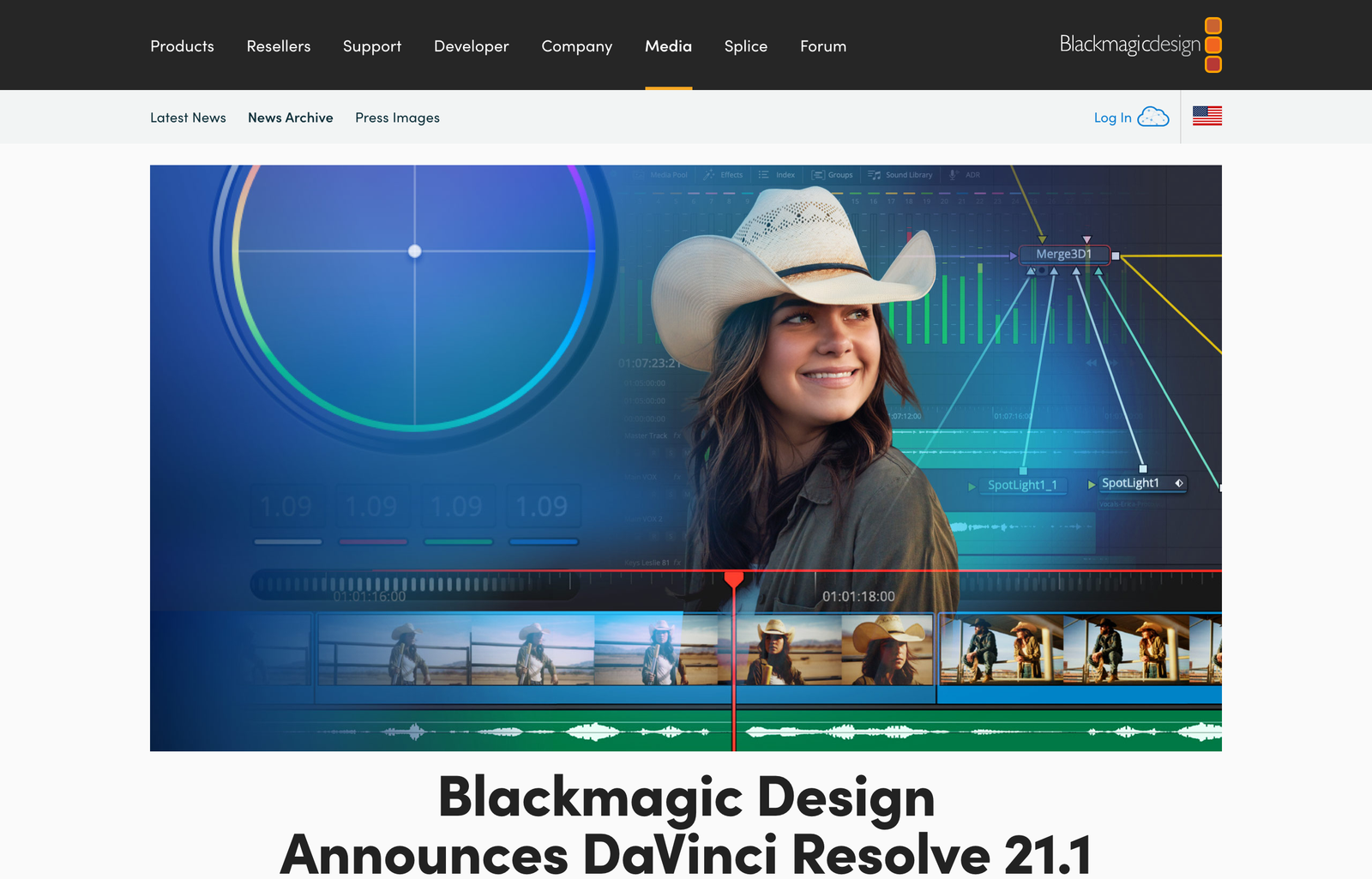
DaVinci Resolve 21.1 shipped on September 8, 2026 with something no other professional NLE has done: a native MCP server that lets AI assistants send commands directly into the editor. Claude, ChatGPT Codex, and other MCP-compatible tools can now organize media, cut timelines, adjust color grades, and batch render — all from a chat interface while Resolve executes the work.
This is not a plugin or a wrapper. Blackmagic Design built MCP support into Resolve Studio itself. And the community has taken it further: multiple open-source MCP servers extend the integration beyond what Blackmagic ships, and one project even brings MCP-style editing to the free version of Resolve.
Here is what actually works, what requires Studio, and how to set it up.
| Feature | Blackmagic Native (Studio) | samuelgursky Community Server | lordhoell Community Server | Free Version Workaround |
|---|---|---|---|---|
| API Coverage | 88 tools | 324 methods in 26 tools | 440+ tools | FCPXML + Lua + UI automation |
| Setup | File > Setup AI Assistants | `npx davinci-resolve-mcp setup` | pip install + Claude Code skill | Clone + configure |
| Resolve Version | 21.1+ Studio | 18.5+ Studio | 20+ Studio | Any free version |
| Cost | $295 (Studio license) | $0 (open source) | $0 (open source) | $0 |
| Platform | macOS, Windows, Linux | macOS, Windows, Linux | macOS, Windows, Linux | macOS only |
1. What MCP Means for Video Editing
MCP — Model Context Protocol — is a standard Anthropic introduced to give AI applications a uniform way to connect with external software. Instead of building a custom integration for every tool, one protocol handles the connection. DaVinci Resolve 21.1 implements this by running an MCP server inside the application that exposes its scripting API over a socket connection.
The practical result: you open Claude Code (or Claude Desktop, or ChatGPT), and instead of describing what you want and then manually doing it in Resolve, the AI assistant executes the edit directly. It reads your project state, understands your timeline structure, and sends commands back to Resolve through the same scripting API that manual scripts use.
This is not screen recording or pixel-level automation. The AI reads structured data from Resolve — project metadata, timeline objects, clip properties, color node graphs — and writes structured commands back. The fidelity is the same as hand-written Python scripts, because it is the same API.
2. The Official Blackmagic Integration (Resolve Studio 21.1)
Blackmagic’s native implementation exposes 88 tools organized across every major workspace in Resolve:
- Project lifecycle: Create, open, save, and switch projects
- Media pool: Import footage, organize bins, read clip metadata
- Timeline editing: Create timelines, add and remove clips, set transitions, manage tracks
- Color page: Read and write node graphs, apply LUTs, set CDL values, adjust individual MultiMaster trims
- Fairlight audio: Track management, audio processing operations
- Render queue: Configure render settings, add jobs, batch render, monitor progress
Setup takes under a minute. In Resolve Studio 21.1, go to File > Setup AI Assistants. Resolve detects compatible assistants on your system — Claude Desktop, Claude Code, ChatGPT Codex — and configures the MCP server automatically. Once connected, you interact through the AI assistant’s chat interface while Resolve handles execution.
One critical detail Blackmagic documents clearly: scripts created by an AI assistant have the same access permissions to disk, network, and other system resources as the assistant itself. This is the same security model as running any Python script through Resolve’s API, but worth understanding before granting an AI assistant broad editing access.
2.1 What Studio 21.1 Added Beyond MCP
The MCP server headlined the release, but 21.1 is substantial on its own:
- Over 25 new Krokodove shape and 3D tools for Fusion (Connect 3D, Heightfield Create 3D, Tube Create 3D, 3D Region toolset, sPrimitive Create)
- Individual MultiMaster HDR trims on the color page
- Enhanced multicam controls and updated trim editor
- Blackmagic Cloud Presentations with subtitle support, annotation sharing, and comment replies
- Python scripting moved to Studio-only; Python 2 support dropped entirely
3. Community MCP Servers: Going Beyond 88 Tools
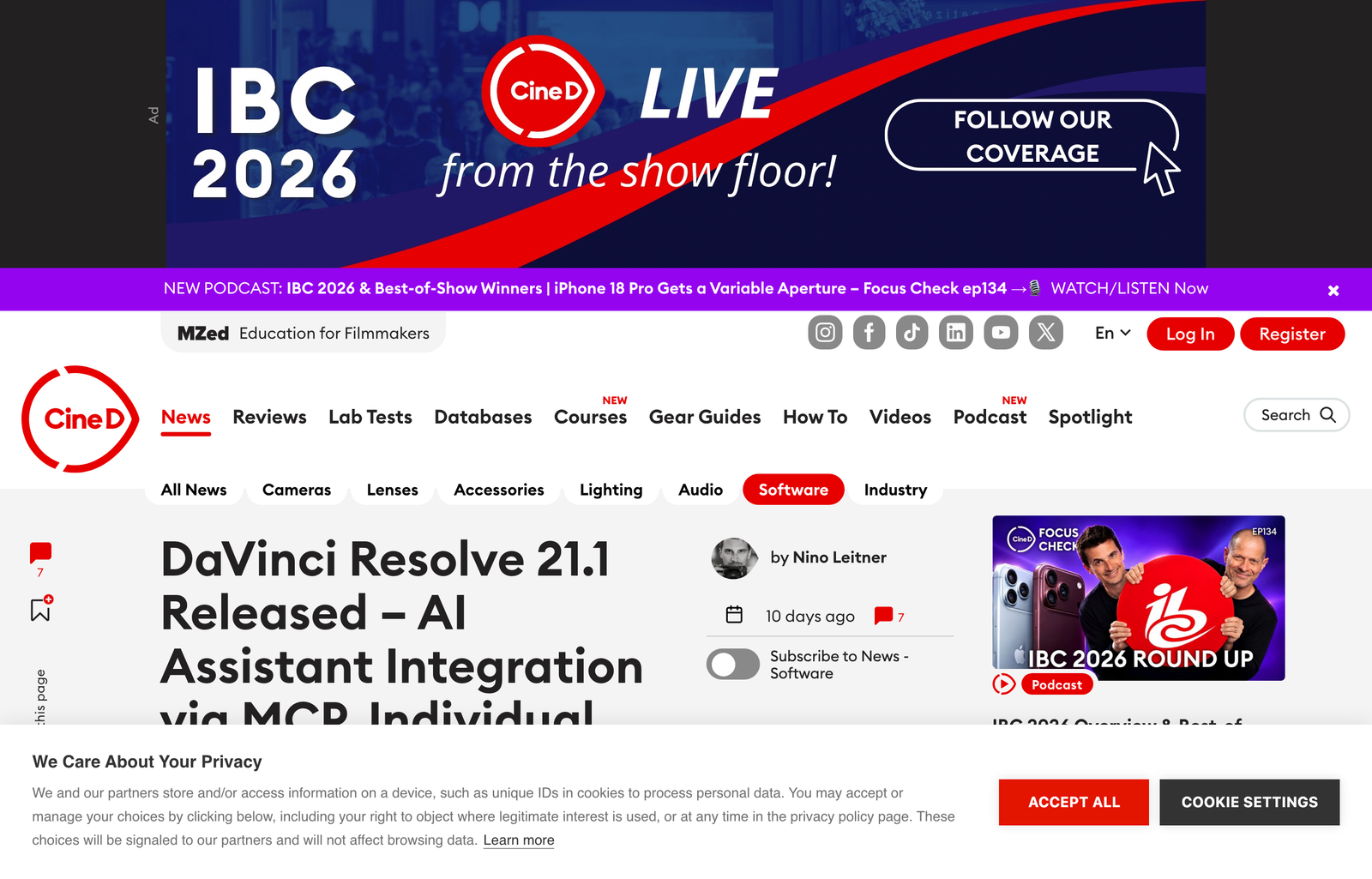
Blackmagic’s native server covers the essentials. The community has built servers that expose significantly more of Resolve’s scripting API, add workflow helpers, and ship with Claude Code skills that teach the AI how to chain operations effectively.
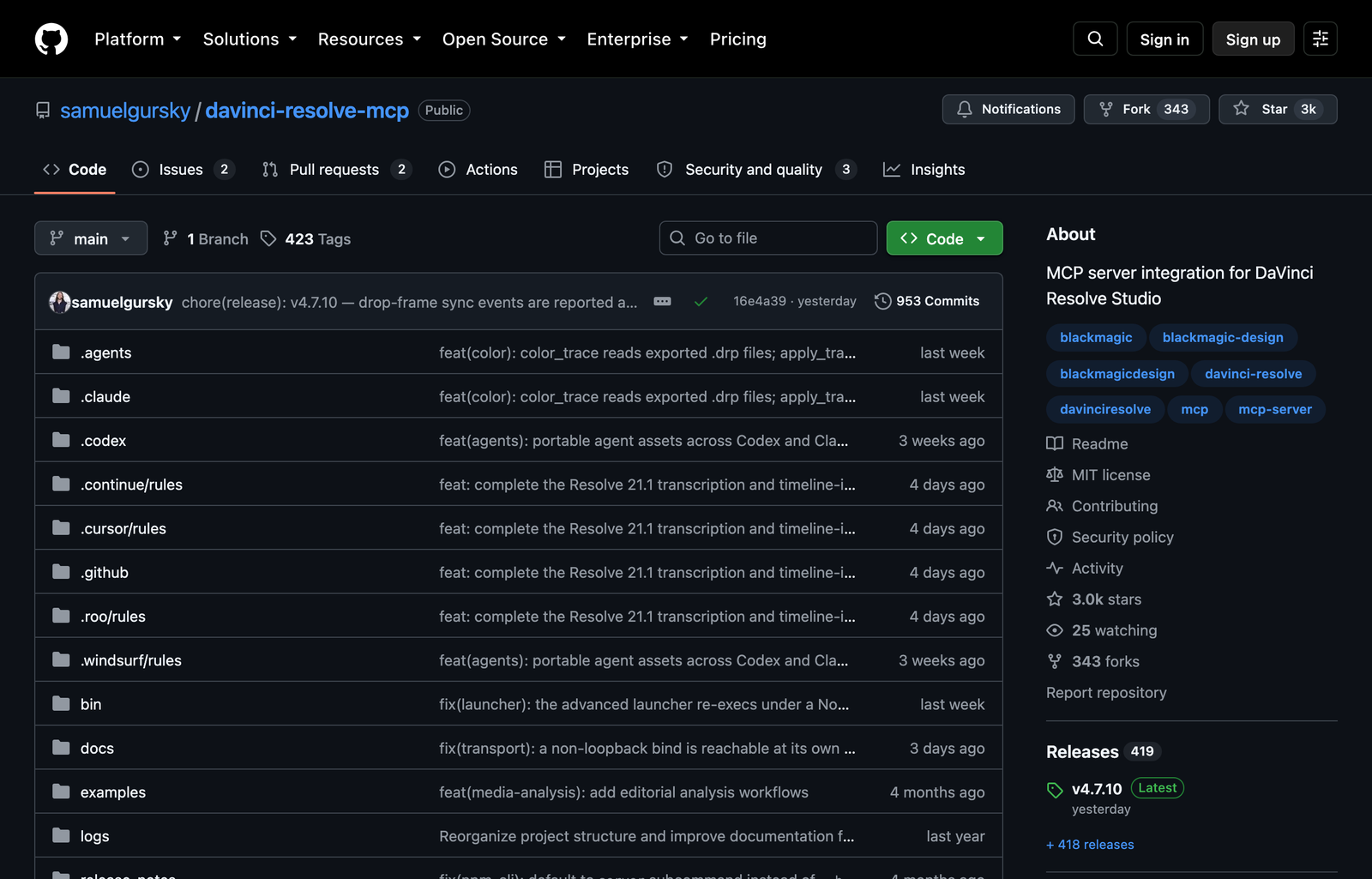
3.1 samuelgursky/davinci-resolve-mcp — The Compound Server
This server groups all 324 Resolve API methods into 26 context-efficient compound tools. Instead of calling one method at a time, each tool handles a related cluster of operations — reducing round trips and keeping Claude’s context window focused.
Key additions beyond the native server:
- Source-safe media analysis: Inspects footage properties without modifying the project
- Guarded workflow helpers: Pre-built sequences for common tasks like review marker placement, render setup, and project lifecycle management
- Fusion node management: Direct access to Fusion compositing operations
- Extension authoring: Tools for building Resolve workflow extensions
Installation is a single command:
Install
npx davinci-resolve-mcp setupRequires DaVinci Resolve 18.5+ (Studio), Python 3.10+, and Resolve’s external scripting preference set to Local.
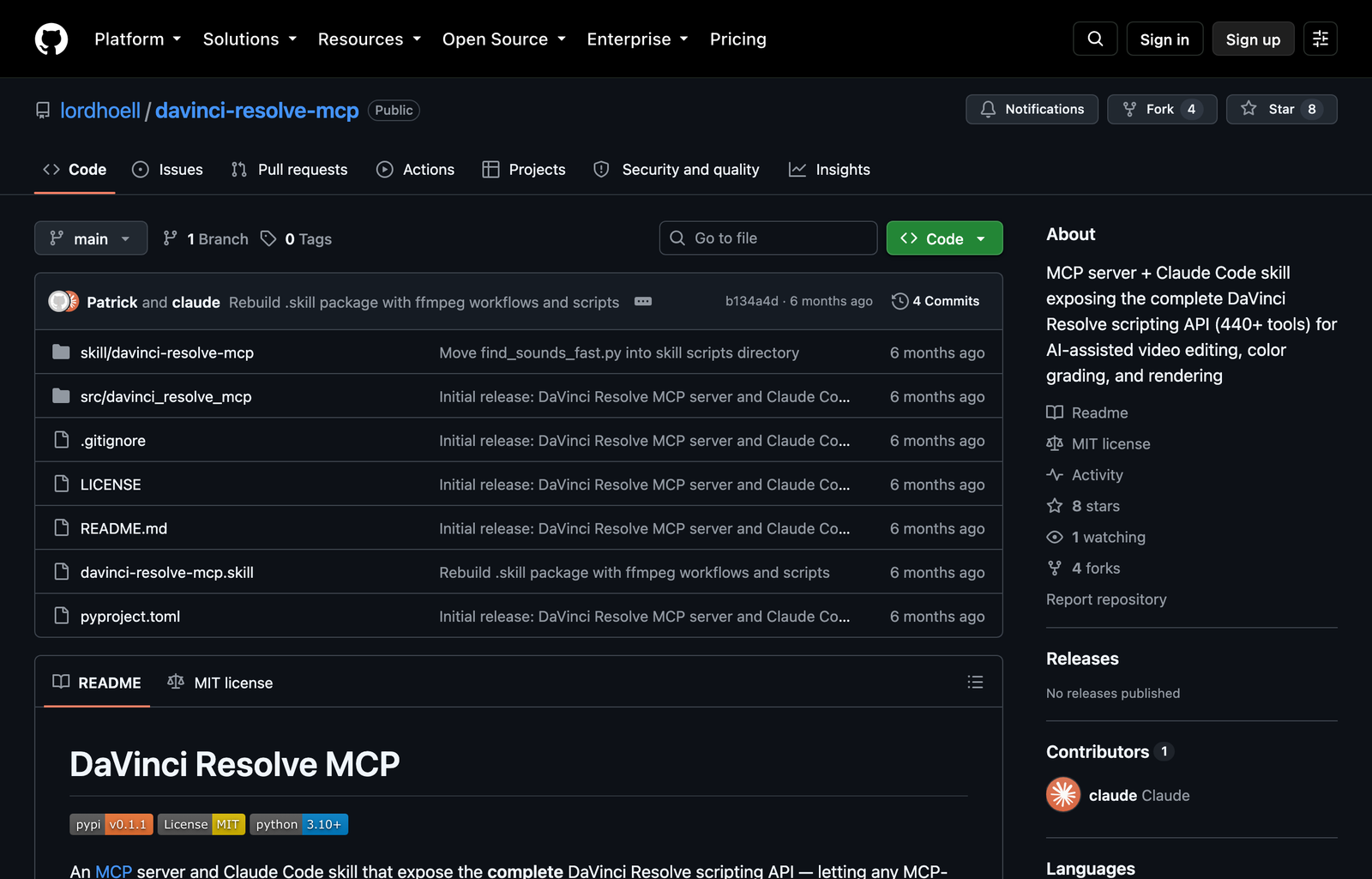
3.2 lordhoell/davinci-resolve-mcp — The Complete API
This server exposes 440+ tools — effectively the entire DaVinci Resolve scripting API surface. Where the native server gives you 88 curated tools and samuelgursky gives you 324 methods in 26 groups, lordhoell maps every available API call individually.
What makes this one distinctive is the included Claude Code skill. It is not just an MCP server — it ships with a skill file that teaches Claude how to:
- Use the object registry pattern (Resolve’s API returns native objects that cannot be serialized over MCP, so the server maintains an in-memory mapping of string IDs to live objects)
- Chain tools in the correct order for complex workflows
- Wire Fusion node graphs properly
- Execute common workflow recipes (rough cut from markers, batch grade from reference, multi-format render)
This is the difference between giving Claude 440 individual tools and giving it 440 tools plus the knowledge of how professional editors combine them.
3.3 emircbngl/davinci-resolve-mcp-free — The Free Version Path
This project solves the biggest limitation of every other option: it works with DaVinci Resolve Free.
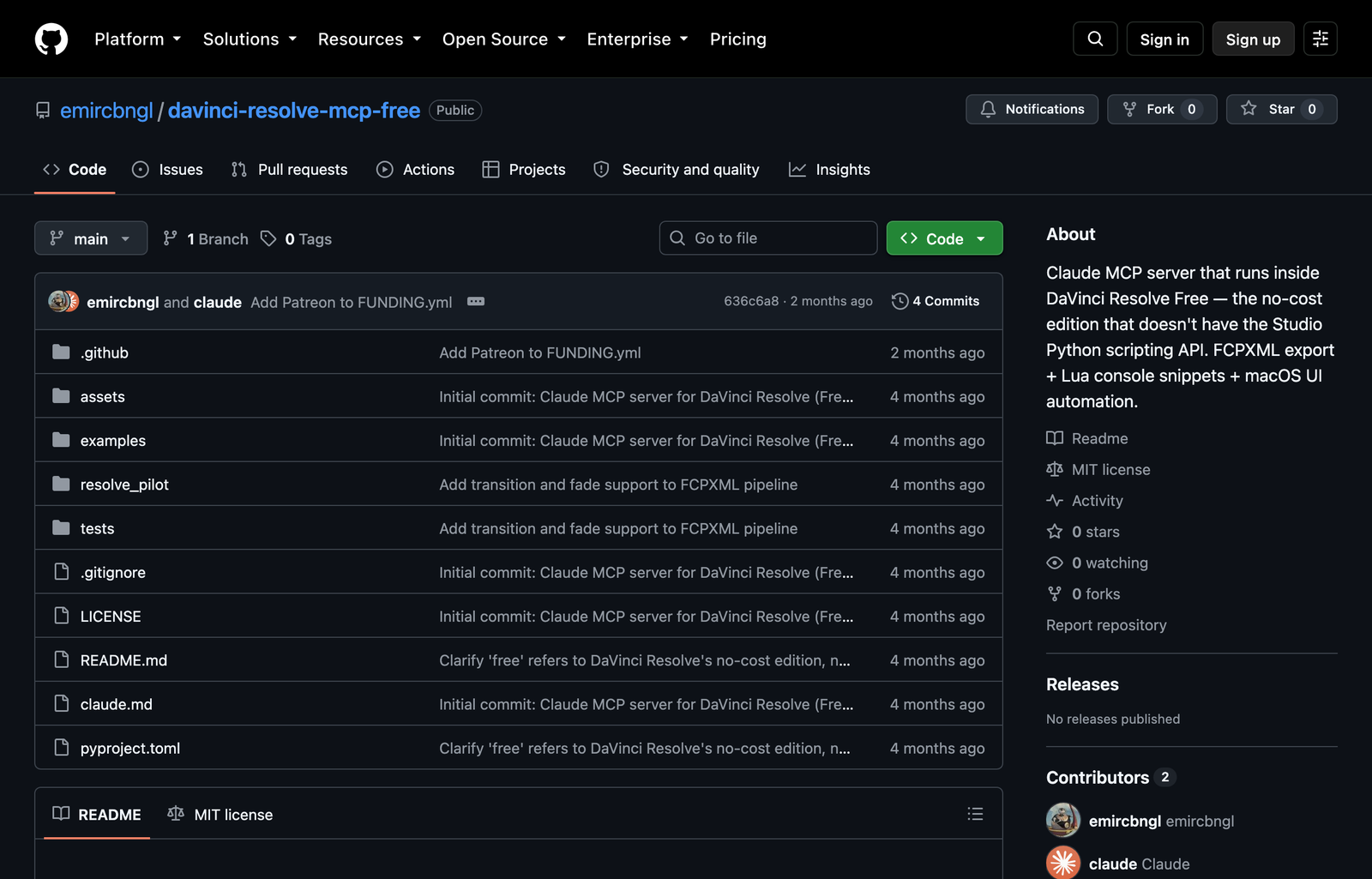
Since Resolve Free does not expose the Python scripting API (`scriptapp(“Resolve”)` returns nil, and the external scripting preference toggle is absent), this server routes around the missing API through three channels:
- FCPXML export + SRT writers: Claude builds a timeline as FCPXML 1.10 that you import into Resolve through the standard file dialog (which works in Free)
- Lua console snippets: Parameterized Lua scripts that you paste into Resolve’s console for operations like color-coding clips or applying LUTs
- macOS UI automation: osascript + Accessibility API for operations that require clicking through Resolve’s interface (opening the Color page, navigating bins)
Additional tools include ffprobe-based footage analysis, local Whisper transcription via mlx-whisper (Apple Silicon), and a rough cut planner that builds edit decisions from transcript analysis.
The tradeoff is clear: instead of Claude sending commands directly into Resolve’s API, it generates artifacts — FCPXML files, Lua snippets, SRT files — that you import or paste manually. It is a two-step workflow instead of a one-step workflow. But it costs nothing and runs on hardware most editors already own.
Platform limitation: Full functionality requires macOS 12+ with Apple Silicon recommended for local Whisper. The FCPXML and Lua channels work on any platform, but UI automation is macOS-only.
4. What AI-Assisted Editing Actually Looks Like
Connecting Claude to Resolve via MCP is not “AI editing your video for you.” It is closer to having a very fast, very literal assistant that can execute precise scripting commands through natural language.
4.1 Timeline Operations
You can tell Claude to create a timeline from a set of clips with specific in/out points, add transitions between every cut, and set the timeline to a specific resolution and frame rate. Claude translates this into the correct sequence of API calls. The result is identical to hand-scripting the same operations — because it is the same API.
Where this saves real time is batch operations. “Add a one-second cross dissolve to every cut in the timeline” is one sentence to Claude and one tedious manual operation for a human. “Create three versions of this timeline at 16:9, 9:16, and 1:1” is another natural-language request that maps cleanly to API calls.
4.2 Color Grading
Claude connected to Resolve’s color page can read the current node graph, analyze individual nodes, apply CDL values, and add LUTs. The lordhoell server’s skill teaches Claude the node-graph data model specifically so it can reason about serial vs parallel nodes, layer nodes, and compound node structures.
The realistic use case is not “grade this footage creatively” — Claude has no visual taste. It is “apply this CDL across every clip in the timeline,” “match the exposure of these interview clips to this reference frame,” or “add a film-grain node after the last correction node on every clip.” Mechanical operations where precision matters more than creative judgment.
4.3 Media Management
Organizing a media pool with hundreds of clips is tedious and mechanical — exactly the kind of work Claude handles well. You can ask it to sort clips into bins by metadata (camera, date, scene), flag clips matching specific criteria, add markers at timecodes you specify, or rename clips following a naming convention.
4.4 Render Automation
Setting up render jobs is another strong fit. “Render a ProRes 422 HQ master plus an H.265 web delivery at 1080p plus a vertical 9:16 crop for social” is three separate render configurations that Claude can set up in one request, add to the render queue, and start.
5. Setup: Three Paths
5.1 Path 1: Native (Studio 21.1+)
The fastest setup. Requires a DaVinci Resolve Studio license ($295 one-time).
- Update to DaVinci Resolve 21.1 or later
- Open Resolve, go to File > Setup AI Assistants
- Resolve detects your installed AI assistants and configures the MCP server
- Open Claude Desktop, Claude Code, or ChatGPT and start editing
5.2 Path 2: Community Server (Studio 18.5+)
More tools, more control. Same $295 Studio requirement.
- Enable external scripting in Resolve: Preferences > General > External scripting using > Local
- Install the community server:
Install
npx davinci-resolve-mcp setup- Configure your MCP client (Claude Code, Claude Desktop, Cursor) with the server endpoint
- For the lordhoell 440-tool variant, install the Claude Code skill for workflow awareness
5.3 Path 3: Free Version (macOS)
No cost. Requires macOS 12+ and some manual steps.
- Clone the emircbngl/davinci-resolve-mcp-free repository
- Install dependencies (Python 3.10+, ffprobe, optional mlx-whisper for transcription)
- Configure the MCP server in your Claude Code or Claude Desktop settings
- Claude generates FCPXML/Lua/SRT artifacts — import or paste them into Resolve manually
6. The $295 Question
DaVinci Resolve’s free version is genuinely capable — it handles 4K editing, Fusion compositing, Fairlight audio, and color grading that would cost four figures in competing software. The Studio upgrade at $295 (one-time, not subscription) adds resolutions above 4K, advanced AI tools like Magic Mask and Speed Warp, HDR grading, multi-user collaboration, and now the MCP scripting API.
For the MCP integration specifically, the question is whether direct API control is worth $295 over the free version’s FCPXML/Lua workaround. If you are doing occasional AI-assisted edits, the free path works. If you are building repeatable automated workflows — batch grading dailies, assembling rough cuts from transcripts, multi-format rendering — the direct API saves enough manual steps to justify the license quickly.
The community free-version MCP is impressive engineering, but it is a workaround for a missing API, not a replacement for it. The two-step workflow (Claude generates artifact, you import it) adds friction that compounds across complex editing sessions.
7. Honest Limitations
Claude does not see your footage. MCP gives Claude access to metadata, timecodes, clip properties, and project structure — not to the actual pixels or audio. It cannot make creative judgments about shot composition, performance quality, or emotional pacing. It can execute mechanical editing decisions you describe precisely.
Color grading needs human QC. Claude can apply CDL values and LUTs programmatically, but it cannot evaluate whether the result looks right. Automated corrections based on waveform data work for technical normalization; creative color work still needs human eyes.
Complex Fusion workflows are experimental. The lordhoell server exposes Fusion’s full node API, but building sophisticated compositing setups through text descriptions pushes the limits of natural language precision. Simple node chains work; complex node trees with specific parameter values require careful prompting.
Security model is permissive. AI-generated scripts have the same system access as any script you run. Resolve’s MCP server does not sandbox AI operations — it trusts the AI assistant the same way it trusts a manually written script. This is reasonable for local single-user workflows but worth considering for shared or networked setups.
Free-version MCP is macOS-only for full functionality. The UI automation channel (osascript + Accessibility) that handles operations like page switching and LUT application is macOS-specific. FCPXML and Lua channels work cross-platform, but the complete free-version experience requires a Mac.